How to Convert HEIC to JPG on Any Device (Complete Guide)
Copied a photo off your iPhone and found that Windows refuses to open it, or a website rejects the upload? The culprit is almost certainly HEIC — Apple's modern photo format. It saves storage space beautifully, but it causes endless friction the moment a photo leaves the Apple ecosystem. This complete guide explains what HEIC is, why it trips everyone up, and how to convert it to JPG privately on any device.
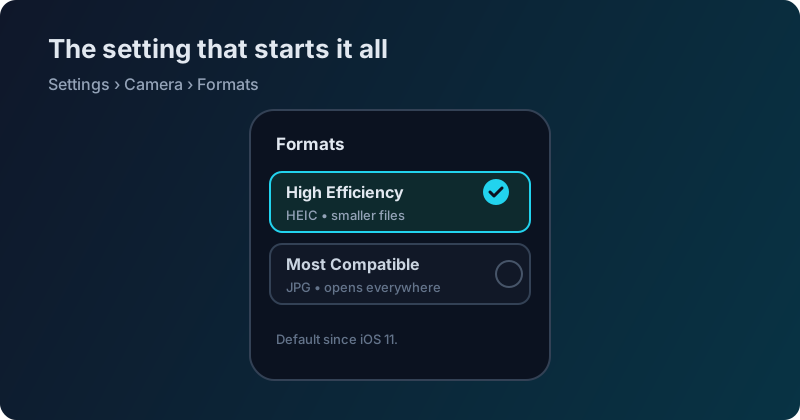 This innocent setting creates files half of Windows computers cannot open.
With VisualConvert you can convert HEIC to JPG in your browser without installing anything and without uploading a single photo to a server.
Why Apple uses HEIC (and why it confuses everyone)
Since iOS 11, iPhones have saved photos as HEIC by default. HEIC is a container built on HEVC — the very same High Efficiency Video Coding technology your iPhone uses to record video. Applying video-grade compression to still images lets Apple store a photo at roughly half the file size of a JPG with the same or better visual quality. For a phone whose storage fills up with thousands of photos, that is a huge, genuine benefit.
The problem is everything outside Apple's walls. HEVC is patent-encumbered and comparatively new, so support outside iPhones and Macs has been slow and patchy. Windows cannot open HEIC without an extra codec. Many websites and upload forms reject it. Older Android phones do not recognise it. Plenty of photo editors and print services simply refuse the file. So the format that saves space on your phone becomes a wall the instant you try to share, upload, edit or print — which is why "convert HEIC to JPG" is one of the most common photo tasks on the web.
A quick note on the confusing terminology, because it trips people up constantly. HEVC (also called H.265) is the compression method. HEIF — the High Efficiency Image File Format — is the image container that uses it. HEIC is simply Apple's specific name and file extension for HEIF images. When someone says "HEIC," "HEIF," and "HEVC photo," they are usually talking about the same thing. It is the same family of technology behind the efficient videos your iPhone records — Apple just extended it to still photos.
There is one more wrinkle: Live Photos. When you shoot a Live Photo, the iPhone saves a HEIC still plus a short HEVC video clip. Converting the HEIC gives you a normal still image and quietly drops the motion component — which is usually exactly what you want when you are sharing or uploading a single picture.
The Windows problem, in one screenshot
If you have ever double-clicked a HEIC file on a Windows PC, you have probably seen some version of this:
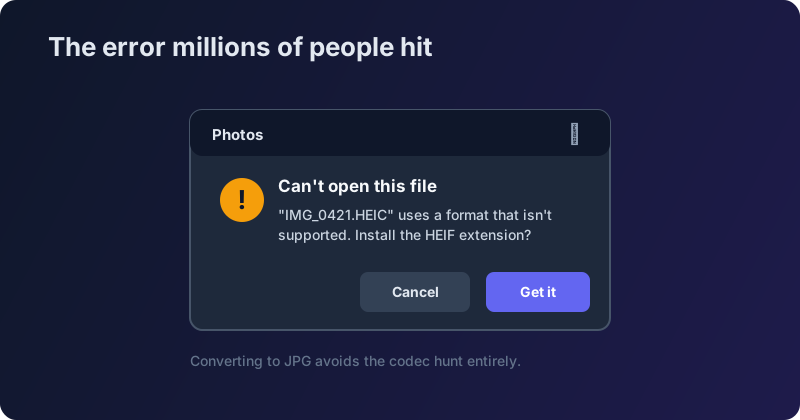 This is the error that sends iPhone users searching for a converter.
Windows can install "HEIF Image Extensions" from the Microsoft Store to add support, but it is fiddly, sometimes has a small cost, and does not help when a website is the thing rejecting your file. Converting to JPG sidesteps the whole codec hunt.
When should you convert HEIC to JPG?
You do not need to convert everything — only the photos that are leaving your phone. Convert when you need to:
- Upload a photo to a website or form that rejects HEIC
- Share pictures with someone on Windows or an older Android device
- Edit in software that does not understand HEIC
- Print at a lab that only accepts JPG
Keep HEIC for photos that live only on your iPhone. There is no reason to give up the storage savings for images you are not sharing.
A practical habit that saves a lot of frustration: convert at the moment of sharing, not in advance. Leave your camera roll as efficient HEIC, and only produce a JPG when a specific photo is about to leave your device — an email attachment, a form upload, a message to a Windows friend. That way you get the best of both worlds: minimal storage use on the phone, and a universally readable file exactly when you need one. Converting only what you share also keeps things tidy, since you are not doubling your library with JPG copies you will never look at again.
How to convert HEIC to JPG privately
Most "HEIC to JPG" websites upload your photos to their servers to do the conversion. For personal pictures — family, documents, anything private — that means handing your images to an unknown third party. The better approach is a converter that runs entirely in your browser, so the photo is decoded on your own device and never transmitted anywhere.
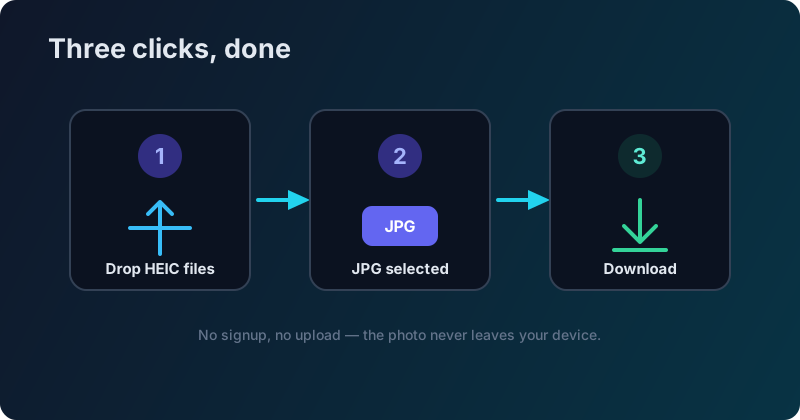 No signup, no upload, no waiting. Three clicks and you're done.
The process is simple: open the HEIC to JPG tool on any device, drop in your HEIC photos, and download the JPGs. JPG is already selected as the output. The first HEIC in a session takes a second or two while the in-browser decoder loads, then the rest convert quickly. Nothing is uploaded, so your privacy is preserved by design.
HEIC vs JPG quality: do you lose anything?
A fair question: if HEIC is more efficient than JPG, does converting to JPG make the photo worse? In practice, no — not in any way you can see.
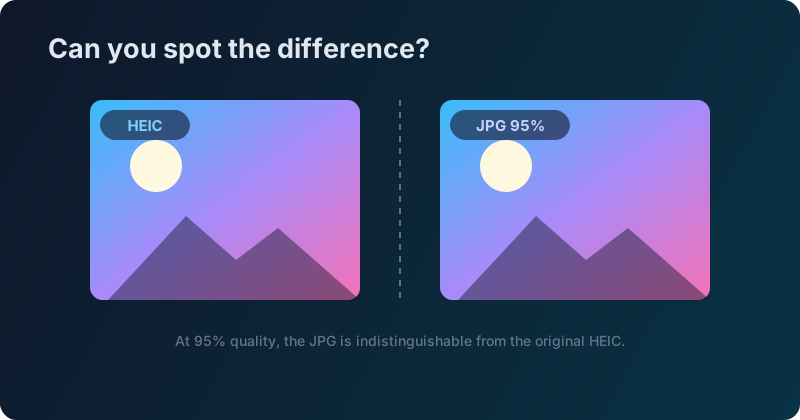 At 95% quality, the JPG is indistinguishable from the original HEIC.
Converting at 95% JPG quality produces an image that is visually identical to the HEIC original for essentially every real-world photo. The JPG will be larger on disk — that is the trade-off for universal compatibility — but the picture itself looks the same. If you later need it smaller for a website or email, you can always compress images afterwards.
One important reassurance: converting never touches your original. A good converter reads the HEIC file and writes a brand-new JPG alongside it, leaving the source photo exactly as it was. Your iPhone's original stays in your camera roll, untouched and still HEIC. That means there is no risk in converting — if you are not happy with a JPG, you simply convert again from the original at a different quality. It also means you can safely batch-convert a whole album to share while keeping every space-saving HEIC master on your device.
HEIC and photo editing software
Editing is one of the most common reasons people get stuck on HEIC. Support has improved — recent versions of Adobe Photoshop and Lightroom open HEIC on both Mac and Windows, and Affinity Photo handles it too. But plenty of older or lighter-weight editors, as well as many web-based tools, still choke on the format. If your editor refuses to import a photo, converting it to JPG (or PNG, if you need to preserve an alpha channel) first is the quickest fix. Edit the JPG, and you are working in a format every tool understands.
How to prevent future HEIC headaches
If HEIC keeps causing you trouble, you can stop it at the source or make your devices handle it:
- On iPhone: open Settings → Camera → Formats → Most Compatible (Apple's official guide). Your camera will save new photos as JPG instead of HEIC. Existing photos stay HEIC until converted, but everything you shoot from then on will just work everywhere.
- On Windows 10/11: install HEIF Image Extensions from the Microsoft Store to view HEIC files in Photos and Explorer. Useful for viewing, though converting is still easier for sharing.
- On modern Android: most current phones display HEIC natively, so you may only need to convert when a specific app or website objects.
Switching your camera to "Most Compatible" is the cleanest fix if you frequently share photos with non-Apple devices, and it costs you almost nothing in storage for everyday snapshots.
HEIC on Android: what you need to know
Android's HEIC support depends heavily on the phone. Recent flagships — the Samsung Galaxy S21 and newer, Google Pixels, and most 2022-onward devices — open HEIC without complaint. Older or budget Androids often cannot, and will show a broken or unsupported-file placeholder.
There is a subtle catch even where it works: apps like Google Photos will happily display HEIC, but when you share or export, they sometimes recompress the image, which can slightly reduce quality. If you want a clean, predictable JPG — the exact same pixels, just in a universal container — running the file through a dedicated converter is more reliable than trusting each app's export behaviour. For several files at once, batch convert them in one go.
And on a Mac?
Macs handle HEIC natively — Preview, Photos and Quick Look all open it without any setup, and you can even export to JPG from Preview's File menu. So if you are staying inside the Apple ecosystem, you rarely need to convert at all. The friction only appears when a photo has to travel to Windows, Android, a website or a printer. That is the mental model to keep: HEIC is not "broken," it is simply Apple-first. Convert a copy when a photo needs to leave home, and keep the HEIC originals to preserve your storage savings.
Batch convert your entire iPhone photo library
Sometimes you do not want to convert one photo — you want to convert fifty. Maybe you are moving a trip's worth of pictures to a Windows laptop, uploading an album to a website that rejects HEIC, or archiving photos in a universally readable format.
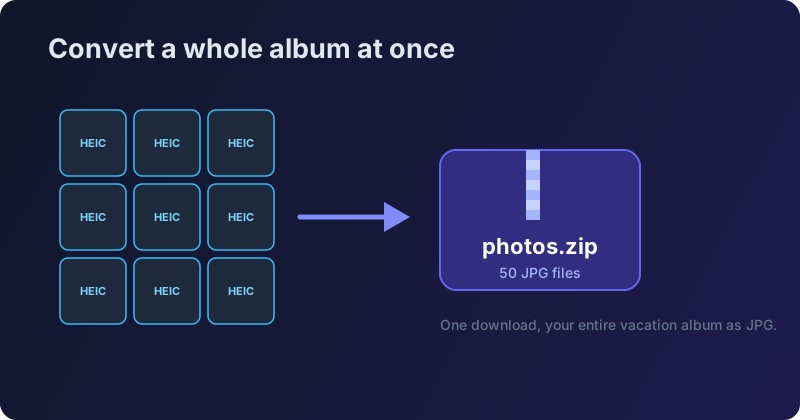 Convert your entire vacation album in one go.
Rather than converting images one at a time, select them all at once, let them convert in your browser, and download the whole set as a single ZIP. It is the fastest way to make an entire album portable — and because it all happens locally, even a large library never leaves your device. Use the batch convert tool and drop in as many photos as you like.
Sharing HEIC through apps and social media
How a HEIC photo behaves when you share it depends entirely on the app, and the results are inconsistent enough to be worth knowing in advance. Messaging apps like WhatsApp, Messenger and Telegram usually convert images to JPG automatically before sending — convenient, but they also recompress aggressively, so the person on the other end often receives a noticeably softer picture than you sent. Social networks such as Instagram and Facebook accept the upload and transcode it on their servers, again applying their own quality loss that you cannot control.
Email is the awkward one: attach a HEIC and many desktop clients simply cannot preview it, leaving your recipient staring at a file they cannot open. And cloud drives like Dropbox or Google Drive will store a HEIC happily enough, but may refuse to preview it in the browser for anyone on a non-Apple device.
The throughline is that you rarely control what the receiving platform does to your file. Converting to a clean JPG before you share puts you back in charge of the quality and guarantees the image opens on the other end — no surprises, no mystery recompression, and no "cannot display this file" errors to explain.
Will HEIC ever just work everywhere?
Support is slowly improving — newer Android phones, the Windows extension, and most modern photo editors now handle HEIC — but "slowly" is the operative word. The web in particular is conservative: upload forms, older browsers and countless niche apps will keep rejecting HEIC for years yet, because they have little reason to add a patent-encumbered decoder for a format most of their users never send them. For the foreseeable future, JPG remains the universal language of digital photos, the format you can hand to anyone and simply trust to open.
So the practical stance has not really changed: treat HEIC as a superb storage format on your iPhone, and JPG as the sharing format for everywhere else. Convert a copy at the moment a photo needs to travel, keep your efficient originals, and you sidestep the whole compatibility headache without giving up any of Apple's storage savings.
Keep it, or convert it?
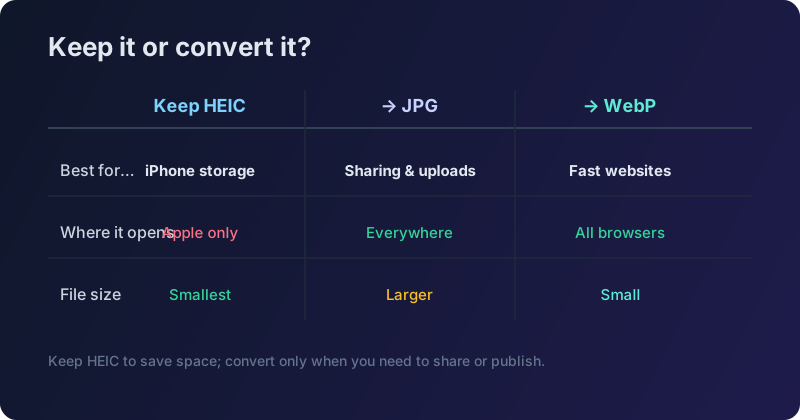 Keep HEIC for storage. Convert to JPG for sharing. Convert to WebP for the web.
The simplest way to think about it: keep HEIC for photos that stay on your iPhone and benefit from the storage savings; convert to JPG when you need to share, upload, edit or print; and convert to WebP when the destination is a website where small file size and fast loading matter most. HEIC is a genuinely excellent format — it is just an Apple-first one. Convert only when a photo needs to travel, and do it with a private, in-browser tool so your pictures stay yours.