How to Batch Convert Images (Whole Folder at Once)
Batch Convert Images — free & instant
Drop a whole folder, pick one format, and download the set as a ZIP — right in your browser. Free, no upload, no sign-up.
You have a folder full of images that all need to be the same format — a hundred iPhone HEIC photos that have to become JPGs, a client's PNG exports that need to be WebP, a batch of scans headed for a form that only takes JPG. Converting them one at a time is the kind of task that eats an afternoon and your patience. Batch conversion does the whole folder in one pass and hands you a single ZIP. This guide shows you the fastest way to do it, free, without uploading a single file, plus how to handle mixed formats, keep your filenames, and combine the conversion with a resize or a compress in the same run.
The short version: drop the whole folder into a batch converter, pick one output format, and download them together. But there are a few things worth knowing — how many files you can do at once, what happens to the order and the names, and why doing it in the browser matters when the folder is full of things you would rather not send to a stranger's server.
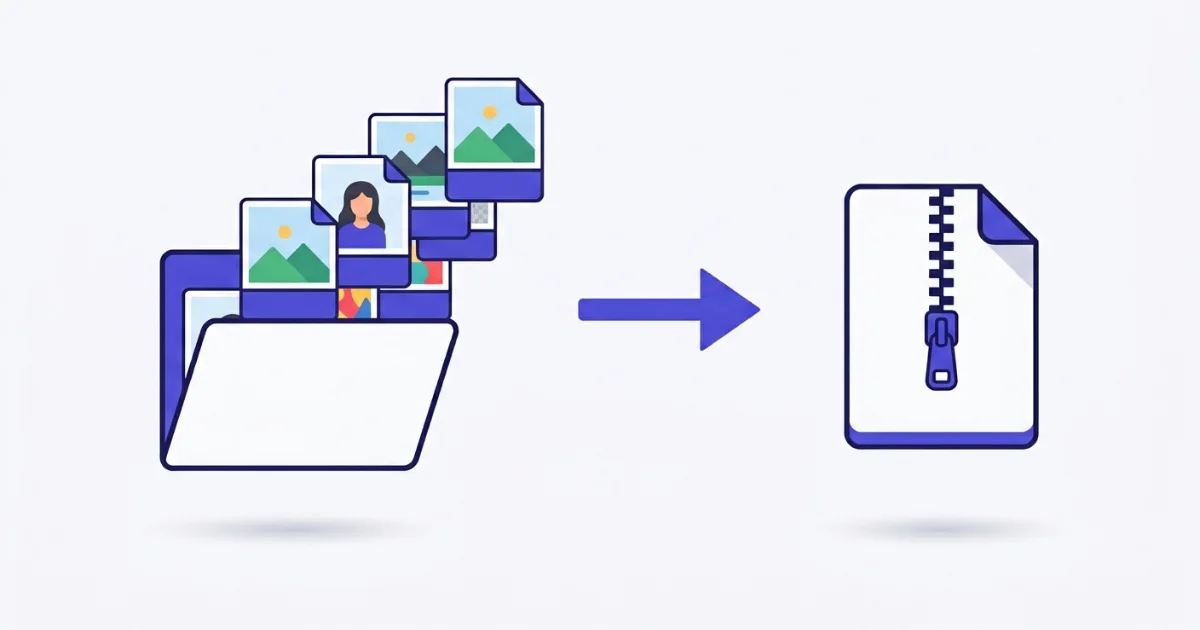 One folder in, one ZIP out: the whole set converts in a single pass.
The fastest way: convert a whole folder at once
This needs nothing installed and works the same on a laptop or a phone.
- Open the batch image converter in any browser.
- Drag your whole folder in, or click to select every file at once.
- Pick the one output format you want them all in — JPG, PNG, WebP, and so on.
- Set the quality if you want smaller files, then convert.
- Download the results together as a single ZIP.
The conversion runs inside your browser, on your own device, so none of the files are uploaded anywhere. That is the part most online tools get wrong: they send every image to a server, convert them there, and keep a copy. When the folder is a client's photos, a set of scanned documents, or product shots that have not launched yet, that matters. A browser-based converter reads each file locally and never transmits it. Turn your Wi-Fi off after the page loads and it still works, which is the proof that nothing is leaving your machine.
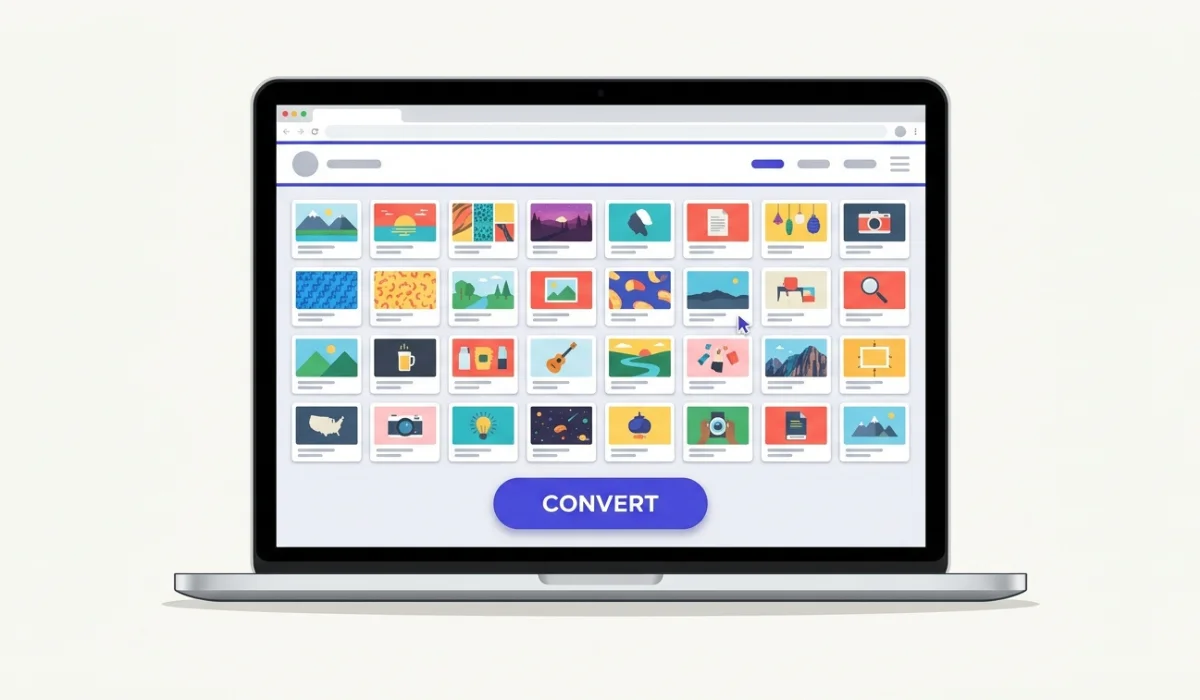 Load the whole set, pick one format, and convert them in one go.
How many images can you convert at once?
On VisualConvert the free tool does up to 5 files in a batch, with no cap on how many batches you run, so you can work through a big folder in a few passes. Pro raises that to 50 files in a single batch and adds the ZIP download for the whole set at once, which is the real time-saver when you are converting a catalogue or a shoot rather than a handful of images. If you convert images in bulk often, the Pro plan pays for itself in saved clicks; if it is a one-off, the free batches will get you there.
Whatever the limit, the work still happens on your device, so a bigger batch does not mean a bigger upload — there is no upload at all.
Which formats can you batch convert?
Any mix of common image formats going to one output. The usual jobs:
- HEIC to JPG — a folder of iPhone photos that will not open on Windows or upload to a form. This is the most common batch by far. There is a dedicated HEIC to JPG guide if that is all you need.
- PNG to WebP — shrinking a set of web images so pages load faster.
- TIFF to JPG — a stack of scans turned into small, shareable files. The TIFF to JPG walkthrough covers the quality trade-offs.
- WebP to JPG or PNG — making downloaded WebP images work in apps that reject them.
You can drop a folder that contains several different input formats and still send them all to one output. A batch of mixed HEIC and PNG files can all come out as JPG in the same run.
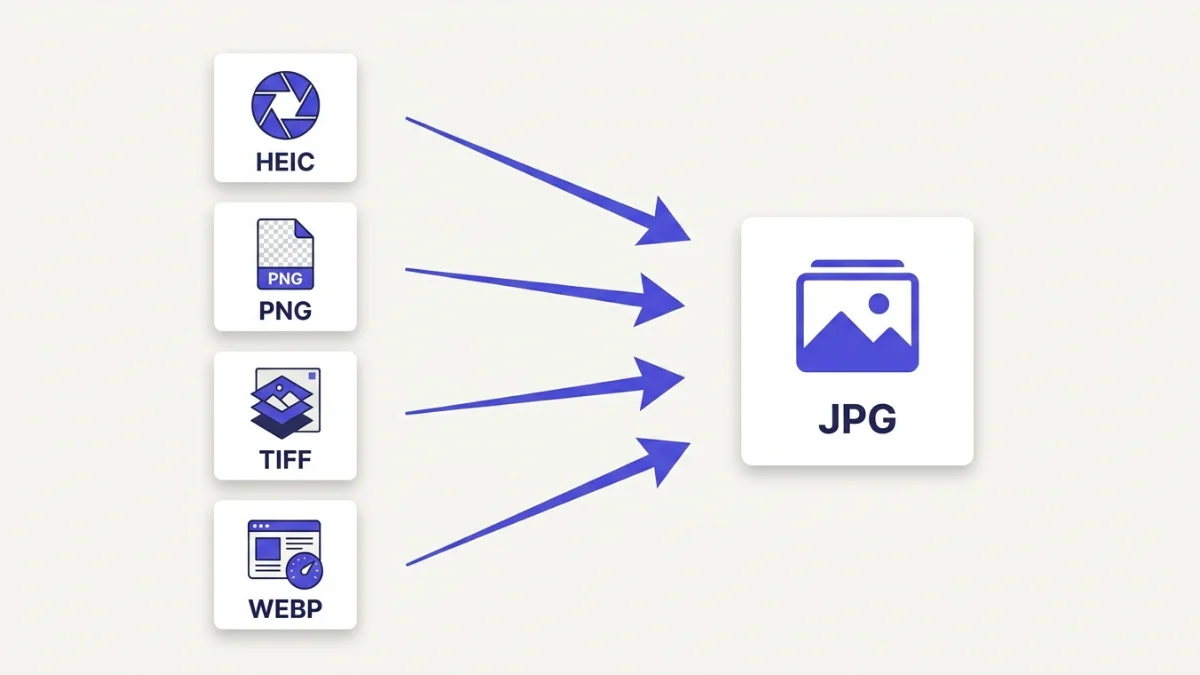 Mixed formats in, one chosen format out, in a single batch.
What happens to filenames and order
A good batch converter keeps each file's original name and just swaps the extension, so beach-photo.heic becomes beach-photo.jpg. That keeps a folder recognisable instead of turning it into image1, image2, image3. The order is preserved too, which matters if the files are pages of a document or frames that need to stay in sequence.
When you download the batch as a ZIP, unzipping it gives you back the same set of files, renamed and converted, ready to drop wherever they were going. Nothing is renamed at random, and nothing is dropped silently.
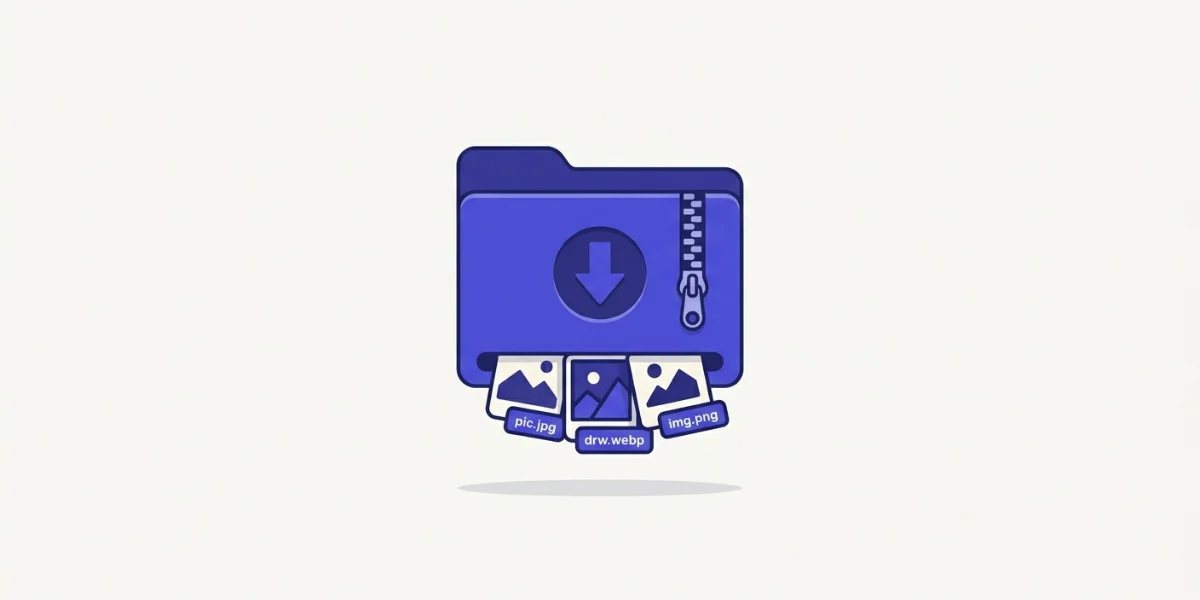 The whole batch comes back as one ZIP, filenames intact.
Convert and resize, or convert and compress, in one workflow
Converting the format is often only half the job. Two common follow-ups:
If every image also needs to be a specific size — the same width for a web gallery, or under a file-size limit for a form — convert first, then run the set through the image resizer for exact dimensions or the compress tool to hit a target like under 100 KB. Doing them in that order keeps the quality predictable.
If the files are going onto social platforms, the sizes differ by platform, and there is a full breakdown in the guide to resizing images for social media. And if you are turning a batch of photos into a document rather than separate images, convert them and then combine the set into one file with the PNG to PDF tool.
How to batch convert on any device
Browser, any device. The batch converter is the one I use, because it takes a whole folder, keeps the names, converts mixed formats to one output, and never uploads anything. It works the same in Chrome, Edge, Safari and Firefox, on a computer or a phone.
Windows. There is no clean built-in way to batch-convert images. Paint does one file at a time, and PowerToys Image Resizer resizes but does not convert formats well. For a folder, the browser tool is faster because it does the whole set in one pass.
Mac. Preview can batch-convert: select the files in Finder, open them together, select all in the sidebar, then use File then Export to send the whole selection to one format. It works well for JPG and PNG, though it will not read HEIC folders as smoothly as a browser decoder does.
iPhone and Android. Phones have no real batch image-conversion built in, and many will not even preview a HEIC or TIFF you receive. Opening the browser tool on the phone converts the whole set on the device itself.
Who batch conversion is for
A few situations where it saves real time:
Online sellers preparing a product catalogue, where every listing image has to be the same format and often the same size. Photographers and anyone digitising an old box of prints or slides, turning a scan folder into shareable JPGs. Web developers converting a project's images to WebP to cut page weight. And the everyday case: a phone full of HEIC photos that need to become JPGs before anyone on Windows can open them.
Common problems and quick fixes
The converter only did some of the files. You hit the batch size limit for your plan. Either run the rest in another batch, or raise the limit with Pro for a large set.
A HEIC file would not convert. A few HEIC variants, especially Live Photos, carry extra data some tools trip on. A browser decoder handles the still image; if one file stalls, convert it on its own and it usually goes through.
The ZIP downloaded but a file is missing. Almost always a single unreadable source file in the folder rather than a converter fault. Check that file opens on its own, then re-run the batch without it.
The converted images are larger than I expected. You converted at maximum quality, or converted photos to PNG. For photographs, JPG or WebP at 80 to 90 percent quality is far smaller with no visible loss; keep PNG for graphics and screenshots.
The colours shifted on a few images. Those files carried an embedded colour profile the converter did not apply. It is rare and usually limited to professional exports; re-saving those specific files as standard sRGB fixes it.
Keeping a batch private
This is worth stating plainly, because the folders people batch-convert are often the sensitive kind: a client's unreleased photos, scanned contracts and IDs, product shots under embargo. Most online batch converters upload every file to their servers, which leaves a copy of the whole set on a machine you do not control.
A browser-based converter does not. Every file is read and converted on your own device, and nothing is sent over the network — no server copy, no account tying the batch to your name. For a folder you would not hand to a stranger, that is the difference that matters, and it costs you nothing in speed.
Last word
Batch conversion turns a folder full of one-by-one busywork into a single step: drop the set in, pick one format, download the ZIP. Do the format first, then resize or compress if the images also need a specific size or weight, and keep photographs as JPG or WebP rather than PNG so the files stay small.
When you have a folder to get through right now, open the batch image converter, drag the whole thing in, and let it convert the set in one pass. It is free, it works on any device, and not one of your files leaves the browser.