How to Convert PNG to PDF (Free, Combine Multiple PNGs)
Convert PNG to PDF — free & instant
Combine one PNG or a whole folder into a single PDF, right in your browser. Free, no upload, no sign-up.
You have a PNG, or a folder of them, and something needs a PDF instead. A job portal that only accepts PDF. A printer that wants one file, not twelve loose images. A set of scanned pages, screenshots or receipts you need to send as a single document. Converting PNG to PDF solves all of these, and the part people actually want is usually the same: take several PNGs and combine them into one PDF, each image on its own page, in the right order. This guide shows you how to do that free, on any device, without uploading your images to a server you do not control.
PNG is an image and PDF is a document, which is why so many forms and printers ask for the second one. The rest of this article covers the fastest way to convert, how to merge multiple PNGs into a single PDF, how to keep the quality and get the page size and orientation right, how to do it on Windows, a Mac or a phone, and how to keep private scans off other people's servers.
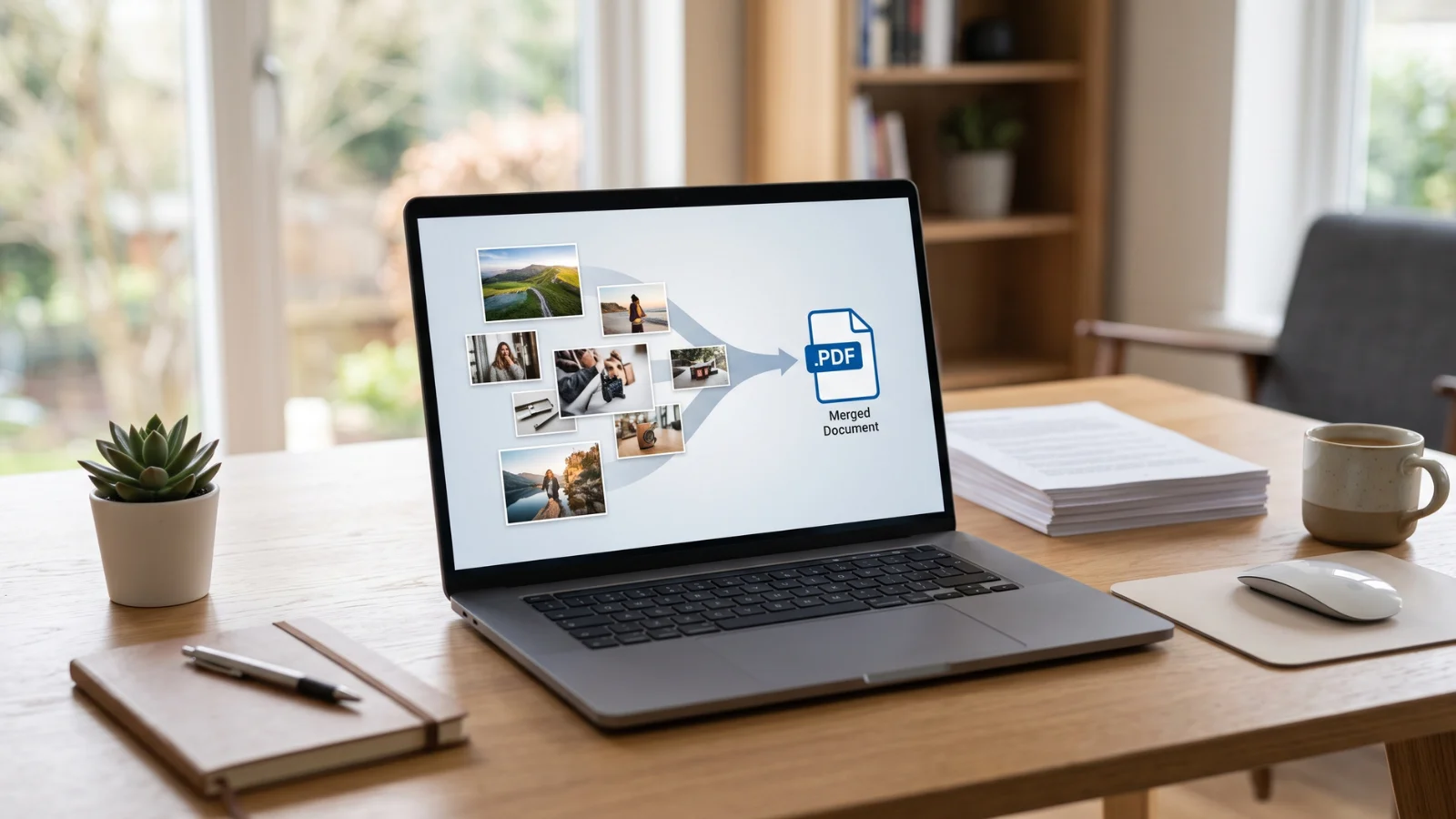 Turn one PNG, or a whole folder, into a single PDF with each image on its own page.
The fastest way: convert PNG to PDF free, no upload
The quickest route needs nothing installed and works the same on a laptop or a phone.
- Open the PNG to PDF tool in any browser.
- Drop your PNG in, or add a whole set of them at once.
- Arrange them in the order you want the pages to appear.
- Download one PDF, with every image on its own page.
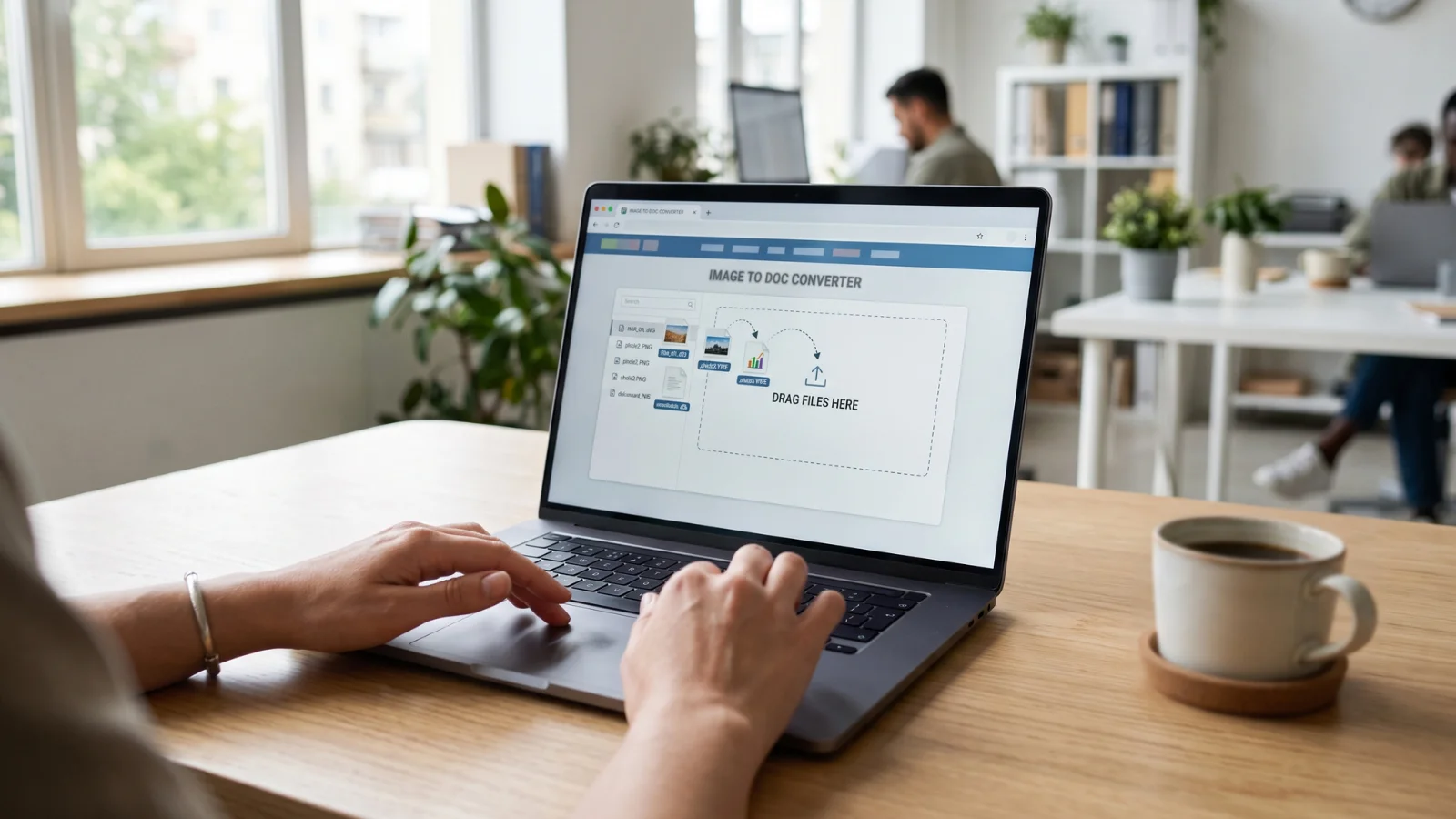 Drop the PNGs in, order them, and download one PDF. Nothing is uploaded.
The reason I send people here first is not only speed. The conversion runs inside your browser, on your own device, so your images are never uploaded anywhere. That matters because the things people turn into PDFs are so often private: a signed form, an ID scan, a bank statement, a page of a contract. Most online converters send those files to their servers, build the PDF there, and hand it back, which leaves a copy of your document on a machine you do not control. An in-browser tool reads the images on your machine and never transmits them. You can prove it by switching your Wi-Fi off after the page loads and converting anyway; it still works, because nothing needed to leave the device.
Combine multiple PNGs into one PDF
This is the job most people are really after, so it gets its own section. You do not want twelve separate PDFs; you want one PDF with twelve pages. A proper converter takes the whole set of PNGs and places each one on its own page, in the order you choose, and gives you a single file.
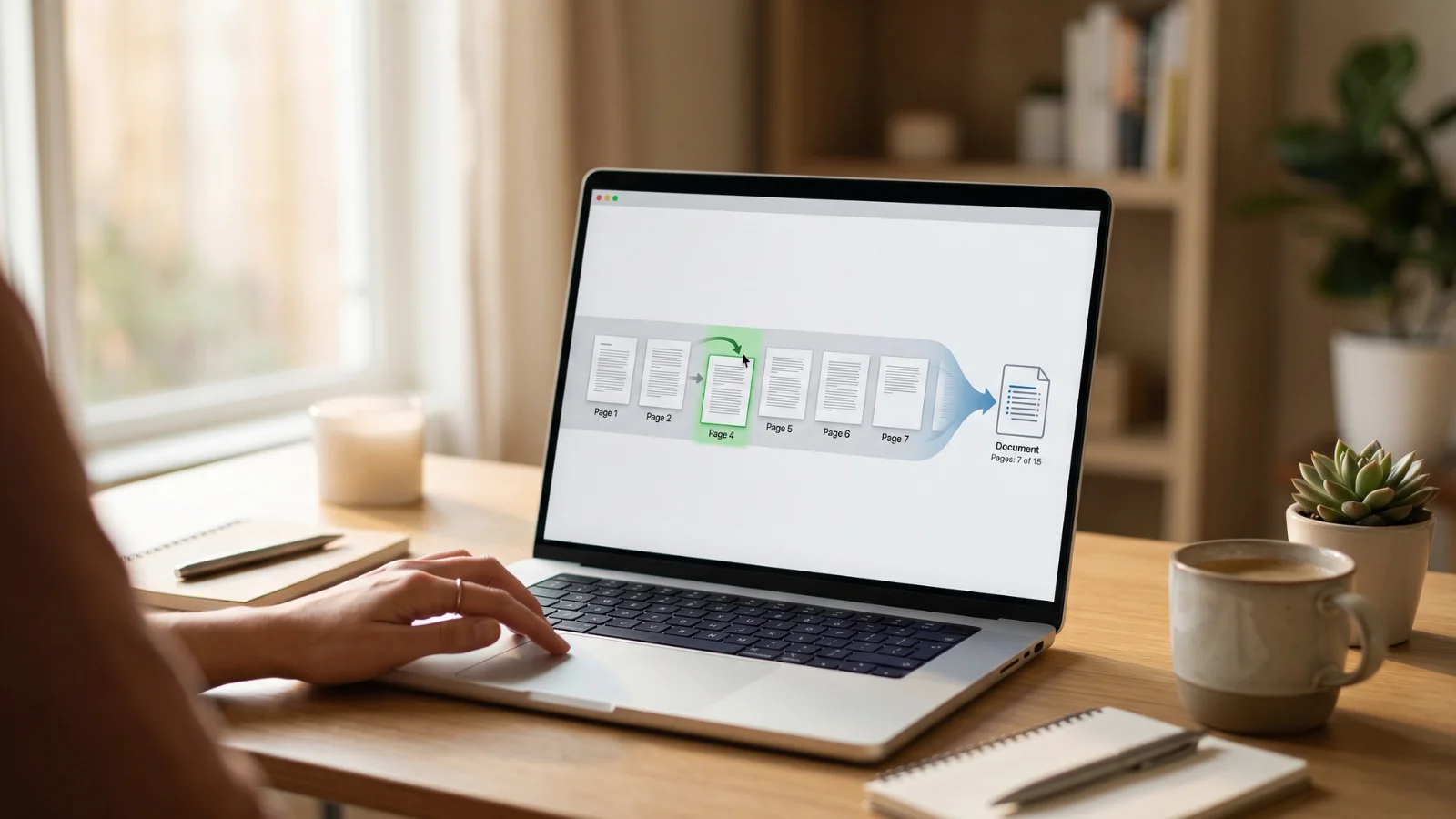 Add the whole set, drag them into order, and get one multi-page PDF.
The order is the part worth getting right. Drag the images into the sequence you need before you export, because page one should be page one. Name your files sensibly first if you can (01, 02, 03) so they sort correctly when you add them. Once the order looks right, export, and you have a document you can email, upload or print as a single attachment. This is how a stack of scanned pages becomes a proper multi-page document, and how a set of design mockups becomes one PDF you can send to a client.
Why turn a PNG into a PDF at all?
A PNG is fine on its own, so it is worth being clear about when a PDF is the better container.
- Upload forms that demand PDF. Job applications, government portals, school and visa forms very often accept only PDF. A PNG has to become a PDF before it will go through.
- Printing. Print shops and office printers handle PDF predictably: fixed page size, fixed margins, no surprises. A loose image can print at the wrong scale.
- Sending several images as one file. One PDF attachment is tidier than a dozen images, and it keeps them in order and together.
- Documents that should not be edited. A PDF reads as a finished document, which is why contracts, invoices and reports live as PDFs rather than images.
In each case the pattern is the same: the image needs to become a page in a document, and PDF is the format everyone expects that document to be.
Will converting to PDF lose quality?
No. Your PNG is placed into the PDF at full resolution, so the page looks exactly like the original image. PNG is lossless to begin with, and wrapping it in a PDF does not re-compress or soften it. Text stays sharp, lines stay crisp, and screenshots stay readable.
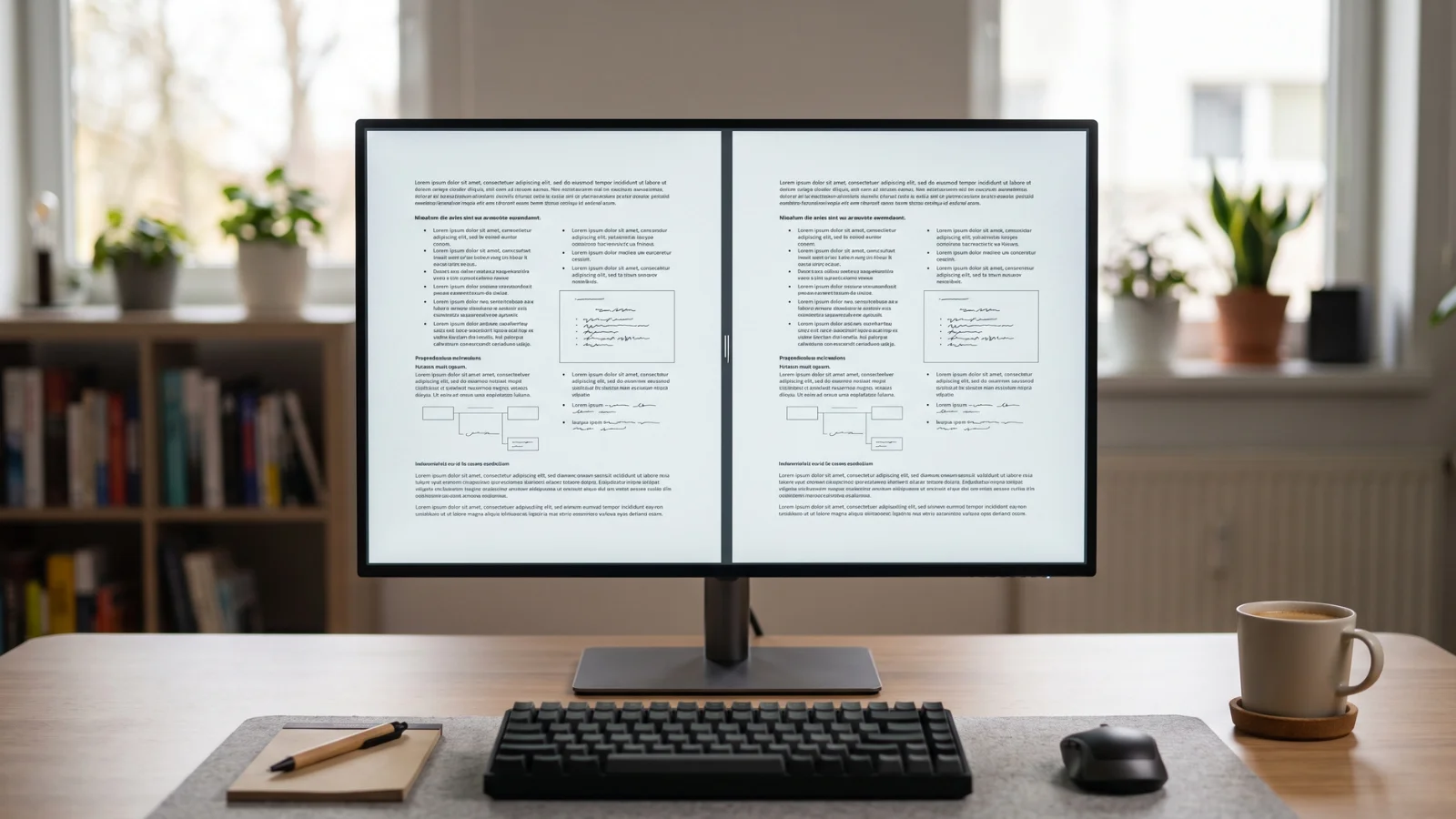 The PDF page is pixel-for-pixel the same as the original PNG.
There is one thing worth knowing about file size. A PDF made from PNGs can be large, because PNG is a heavy format for anything photographic. If the result is bigger than an upload limit allows, you have two easy options: convert photo-heavy pages from JPG instead of PNG before building the PDF, or run the finished images through a compress tool first. For pages that are mostly text, tables or line art, keep PNG; it stays razor-sharp and the size is usually fine.
Getting the page size and orientation right
A small detail that trips people up: the page size. A good converter can either match each page to the image's own dimensions, or fit every image onto a standard page like A4 or US Letter. Which one you want depends on the job.
Match the page to the image when the PNG is the whole point, like a full-bleed design or a screenshot you want shown edge to edge. Fit to A4 or Letter when the PDF will be printed or submitted to a form, because those expect a standard paper size with margins. Orientation follows the same logic: a wide screenshot wants landscape, a scanned portrait page wants portrait. Set this before you export so you are not reformatting afterwards.
How to convert PNG to PDF on any device
Here is how to do it with what you already have, alongside the browser tool. Each of these keeps the file on your device.
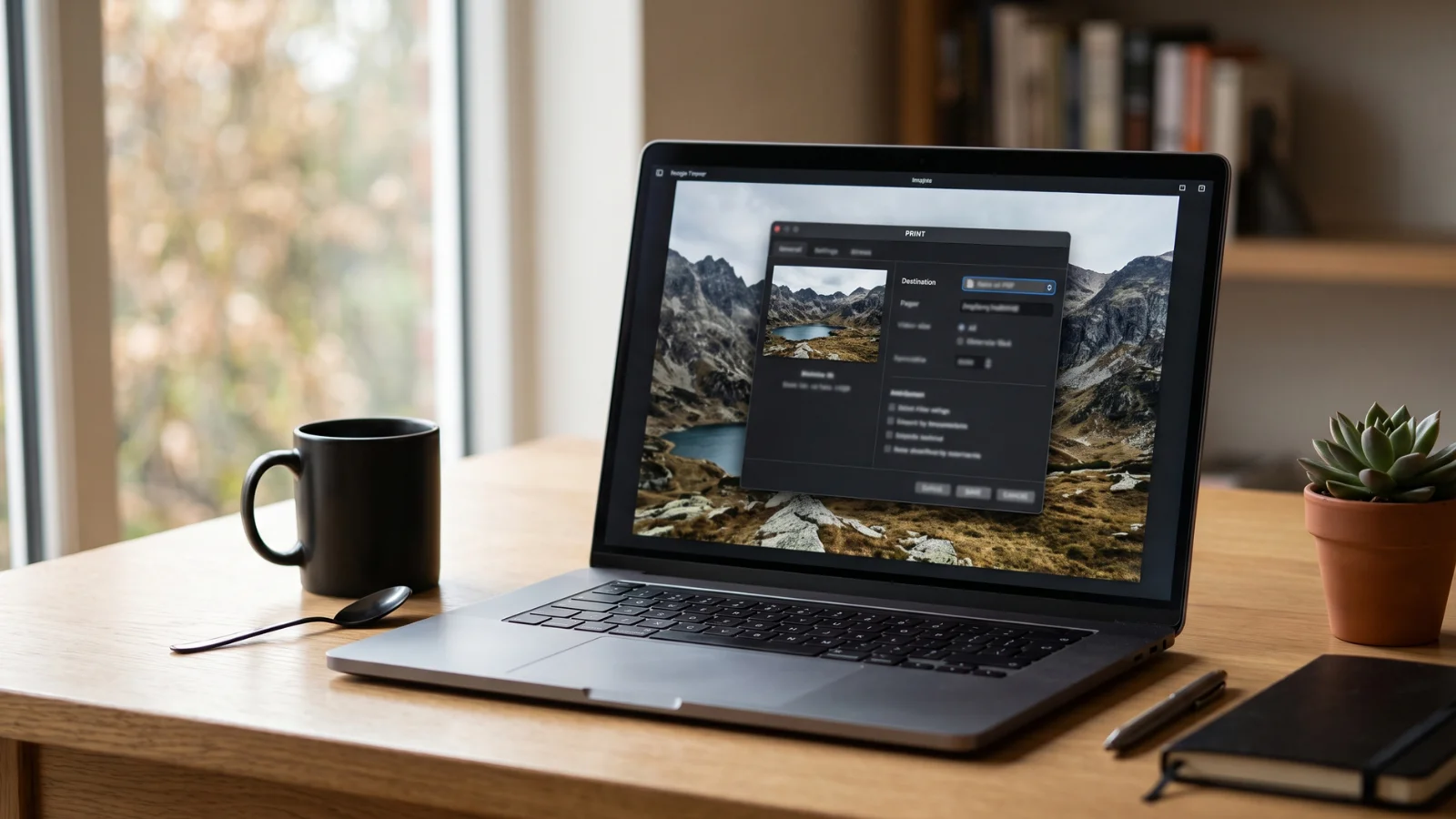 Every computer can 'print' an image to a PDF with the built-in PDF printer.
Browser (any device). The PNG to PDF tool is the one I reach for, because it combines several images into one document, lets you set the order and page size, and never uploads the files. It works the same in Chrome, Edge, Safari and Firefox, on a computer or a phone.
Windows. For a single image, open the PNG in the Photos app, choose Print, and pick "Microsoft Print to PDF" as the printer. That saves a one-page PDF. To combine several PNGs, select them all in File Explorer, right-click, choose Print, and again pick Microsoft Print to PDF; it prints the whole selection into one PDF. For control over order and page size, the browser tool is easier.
Mac. Preview does this well. Open the PNGs in Preview, select all the thumbnails in the sidebar in the order you want, choose File then Print, then use the PDF dropdown at the bottom of the print dialog and choose "Save as PDF." That builds a single multi-page PDF from all of them.
iPhone and Android. On iPhone, open the photo in Photos, tap Share, then Print, then pinch out on the print preview to open it as a PDF and share or save it. On Android, open the image, choose Print, and select "Save as PDF" as the printer. For merging several images in order, the phone browser and the online tool are more reliable than the built-in print flow.
Photoshop, Word and Google Docs. If you already have one open, all three can place images and export a PDF. In Photoshop, use File then Save As and choose Photoshop PDF, or File, Automate, PDF Presentation to combine several. In Word or Google Docs, insert the images onto pages and export or download as PDF. These are fine when you are already working there, though they add margins you may not want.
Screenshot to PDF, and other common jobs
A few specific jobs come up again and again, and they are all the same conversion underneath.
Screenshots to a PDF. Screenshots save as PNG on most systems, so turning a series of them into one PDF is the classic case. Capture them, add them in order, and export a single document. This is how people turn a set of chat screenshots, a bug report, or a step-by-step guide into one shareable file.
Scanned pages to a document. If you scanned or photographed the pages of a form and ended up with a folder of PNGs, combining them into one PDF gives you back the document. Get the order right and it reads exactly like the original.
Receipts and invoices. Snap or scan each one as a PNG, then merge them into a single PDF for an expense claim or your records. One file beats a scattered folder at tax time.
Turning a PDF back into PNGs
Sometimes you need the round trip. You built a PDF, and now someone wants the pages as images again, or you want to edit one page in an image editor. That is easy in the other direction: each page of the PDF becomes its own PNG.
If you need to go back, use the PDF to PNG tool to render every page as a separate image, or the PDF to JPG tool if you want smaller files for photo-heavy pages. Both run in your browser, so the round trip stays private from start to finish.
PNG to PDF or JPG to PDF — which should you use?
Both build a PDF from images; the difference is which source format suits your pages.
Use PNG to PDF when your images are screenshots, diagrams, text, line art or anything with sharp edges, because PNG keeps those crisp and the PDF inherits that sharpness. Use JPG to PDF when your pages are photographs, because JPG is far smaller for photos and the resulting PDF will be lighter with no visible loss. If your set is mixed, the Image to PDF tool takes any image type and combines them into one document, so you do not have to convert everything to the same format first.
Common problems and quick fixes
A few things trip people up when converting PNG to PDF. Here is how to sort each one.
The pages are in the wrong order. The converter used the order the files were added. Rename them with leading numbers (01, 02, 03) before adding, or drag them into order in the tool before exporting.
The PDF file is huge. PNG is heavy for photos. For photographic pages, use JPG to PDF instead, or compress the images before building the PDF. For text and graphics, PNG is fine and the size is usually reasonable.
The image is tiny on a big page. The converter fitted your image onto a full A4 or Letter page. Switch to the "match page to image" option so the page is the size of the PNG, with no empty margins.
The transparent background turned white. PDF pages are not transparent, so any transparent area of the PNG fills with white (or whatever background the tool uses). That is expected. If you need the transparency preserved, keep the file as a PNG rather than a PDF.
The upload form still rejects it. Check the form's size limit as well as the format. A valid PDF that is over the size cap will be refused; compress the images first, then rebuild the PDF.
Keeping your images private
It is worth saying plainly, because the images people convert to PDF are so often personal: ID scans, signed forms, pay slips, medical letters, bank statements. Most online converters upload those files to their servers, build the PDF there, and send it back, which means a copy of your document sits on a machine you do not control, under terms you probably did not read.
A browser-based converter avoids all of that. The images are read and combined on your own device, and nothing is sent over the network. There is no server copy to leak and no account tying the document to you. For anything you would not hand to a stranger, that is the difference that matters.
Last word
Converting PNG to PDF is a small task with one thing that actually matters to most people: getting several images into one document, on separate pages, in the right order. Set the order and the page size before you export, keep PNG for sharp text and graphics, and switch to JPG for photo-heavy pages to keep the file light. Whichever device you are on, the quickest and most private route is a browser tool that combines the whole set and never uploads a thing.
If you have PNGs you need as a PDF right now, open the PNG to PDF tool, add your images, put them in order, and download your document in a couple of clicks.