How to Open and Convert a WebP File (to JPG or PNG)
Convert WebP to JPG — free & instant
Turn a .webp file into a standard JPG or PNG that opens everywhere, right in your browser. Free, no upload, no sign-up.
You download an image, go to open it, and your computer has no idea what to do with it — because it is a .webp file. WebP is a modern image format that makes files smaller, which is great for websites but annoying when you just wanted a normal picture you could open, edit and share. This guide shows you what a WebP file is, how to open one, and how to convert it to JPG or PNG for free, in your browser, in a couple of seconds.
We will cover the fastest way to convert, how to just view a WebP without converting, whether to choose JPG or PNG, and why some apps refuse to open WebP at all.
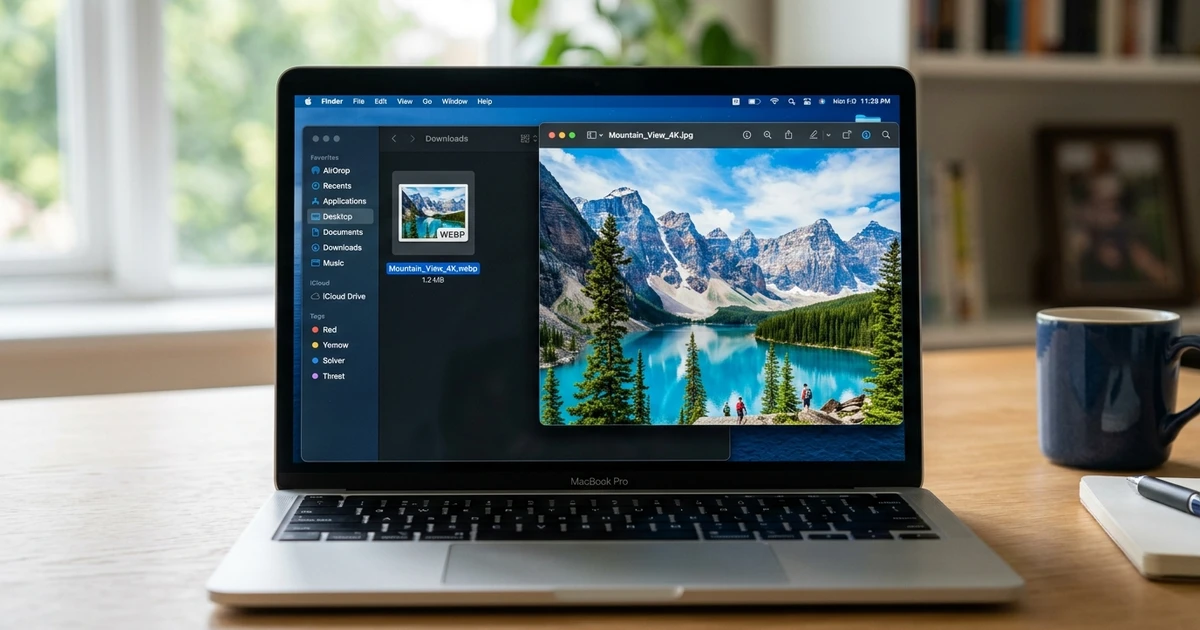 A WebP file converts to a normal JPG or PNG that opens everywhere.
The fastest way: convert a WebP file to JPG
This needs nothing installed and works the same on a phone or a laptop.
- Open the WebP to JPG tool in any browser.
- Drop your .webp file in.
- Download it as a standard JPG — or convert to PNG if you need transparency.
It runs in your browser, on your own device, so the file is never uploaded. Turn your Wi-Fi off after the page loads and it still converts, because nothing leaves your machine.
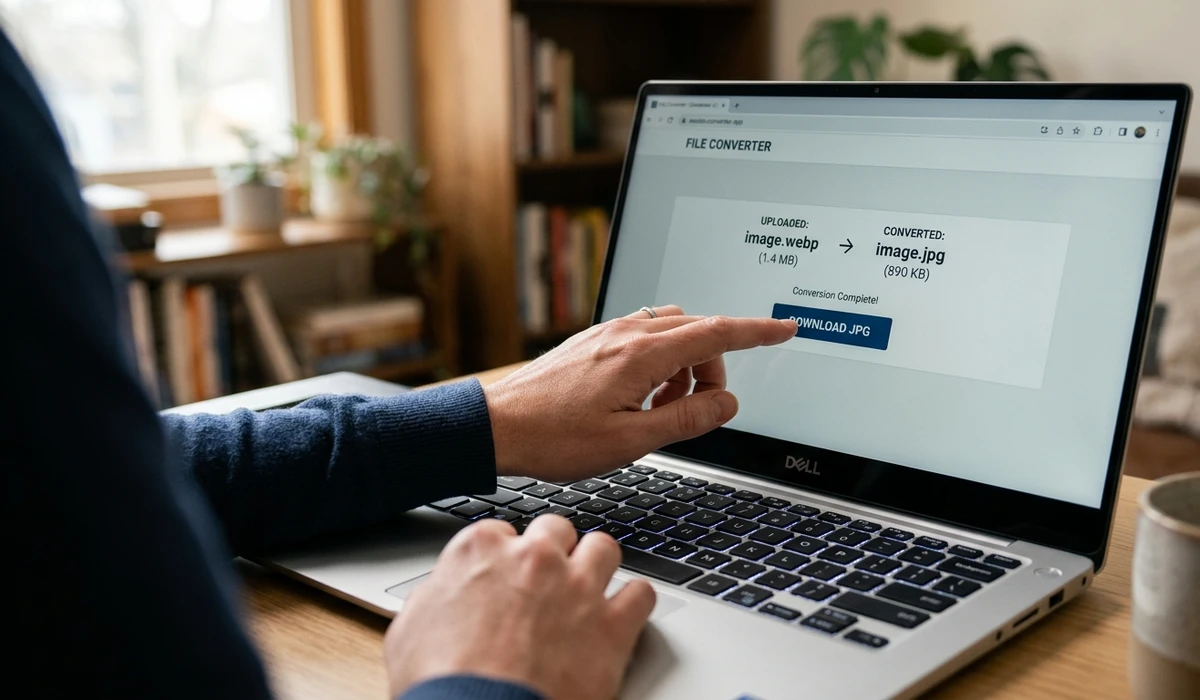 Drop the .webp in and download a normal JPG or PNG that any app can open.
What is a WebP file, and why do you keep getting them?
WebP is an image format made by Google. It compresses images about 25 to 30 percent smaller than JPG or PNG at the same quality, so websites use it to load faster. That is why you keep running into them: when you save an image from a web page, you often get a .webp instead of a .jpg, because that is how the site stored it.
The format is fine — it is just newer, so some older apps, printers and upload forms do not recognise it yet. Converting it to JPG or PNG turns it into something every program and every upload box accepts.
Just want to view it, not convert it?
If you only need to see the image, you may not have to convert it at all. Most modern browsers — Chrome, Edge, Firefox and current Safari — open WebP files directly. Drag the .webp onto a new browser tab and it will display. To save it as a normal format from there, you can right-click and choose "Save image as", though whether that gives you a JPG depends on the browser — the converter is the reliable way to get a true JPG or PNG.
WebP to JPG or PNG — which should you pick?
Both get you a widely-supported image; they just suit different pictures.
Choose JPG for photographs and anything colourful. It makes small files that open everywhere, which is what you want for most WebP images you are trying to use or upload.
Choose PNG when the image has a transparent background or is sharp text, a logo or a diagram. PNG keeps transparency and crisp edges, which JPG cannot. If your WebP has a see-through background you want to keep, convert it to PNG.
Why won't my computer open a WebP file?
If double-clicking a .webp opens nothing, or your photo editor rejects it, it is simply that the app predates WebP or never added support. Older versions of Windows Photo Viewer, some printers, a few social and messaging apps, and plenty of upload forms still do not take WebP. It is not a broken file — it is an unsupported format in that one app.
The fix is the same either way: convert the WebP to JPG or PNG, and the problem disappears, because those two formats are supported literally everywhere.
How to open and convert a WebP file on any device
Browser, any device. The WebP to JPG tool is the one I use — it converts to JPG or PNG and never uploads the file. It works the same in Chrome, Edge, Safari and Firefox.
Windows. Recent Windows opens WebP in the Photos app; older versions do not. To get a JPG, use Paint (open the .webp, then Save as JPEG) or the browser tool for a cleaner result.
Mac. Preview opens WebP on current macOS and can export it: open the file, choose File then Export, and pick JPEG or PNG.
iPhone and Android. Phones can usually preview a WebP but not always save it as a JPG. Open the browser tool on the phone to convert it reliably.
Is WebP actually better?
For websites, yes — smaller files mean faster pages, which is why sites serve it. For everyday use on your own computer, JPG and PNG are still more universally supported, so converting a stray WebP to one of them is usually the practical move. If you are the one building a website and want the speed benefit, you can go the other way and convert your images to WebP; the guide to the best image format for website speed covers when that is worth it, and there is a plain WebP vs PNG comparison too.
Keeping your file private
Whatever the image is, you may not want to hand it to a random website to convert. Most online converters upload your file to their servers. A browser-based converter does the work on your own device and uploads nothing, so the file stays yours. It costs nothing in speed and removes the question entirely.
Last word
A WebP file is just a smaller, newer image format — handy for websites, awkward when an app will not open it. If you only need to view it, most browsers show it directly; if you need to use, edit or upload it, convert it to JPG for photos or PNG for transparency, and it works everywhere again.
When you have a WebP to deal with right now, open the WebP to JPG tool, drop it in, and download a normal image in a couple of clicks. It is free, it works on any device, and your file never leaves the browser.