LinkedIn Photo Size Guide 2026: Profile, Banner & Post Dimensions
Social Media Image Resizer — free & instant
Crop and resize your photo to the exact LinkedIn size in your browser — free, private, no uploads.
A blurry, badly cropped photo is the fastest way to look unprofessional on the one network where that matters most. LinkedIn resizes and crops your images automatically, and when you upload the wrong dimensions it squashes your face in a profile circle or chops the ends off your banner. The fix is simple: upload each image at the size LinkedIn actually expects. This guide lists the exact 2026 dimensions and shows how to resize a photo to any of them for free.
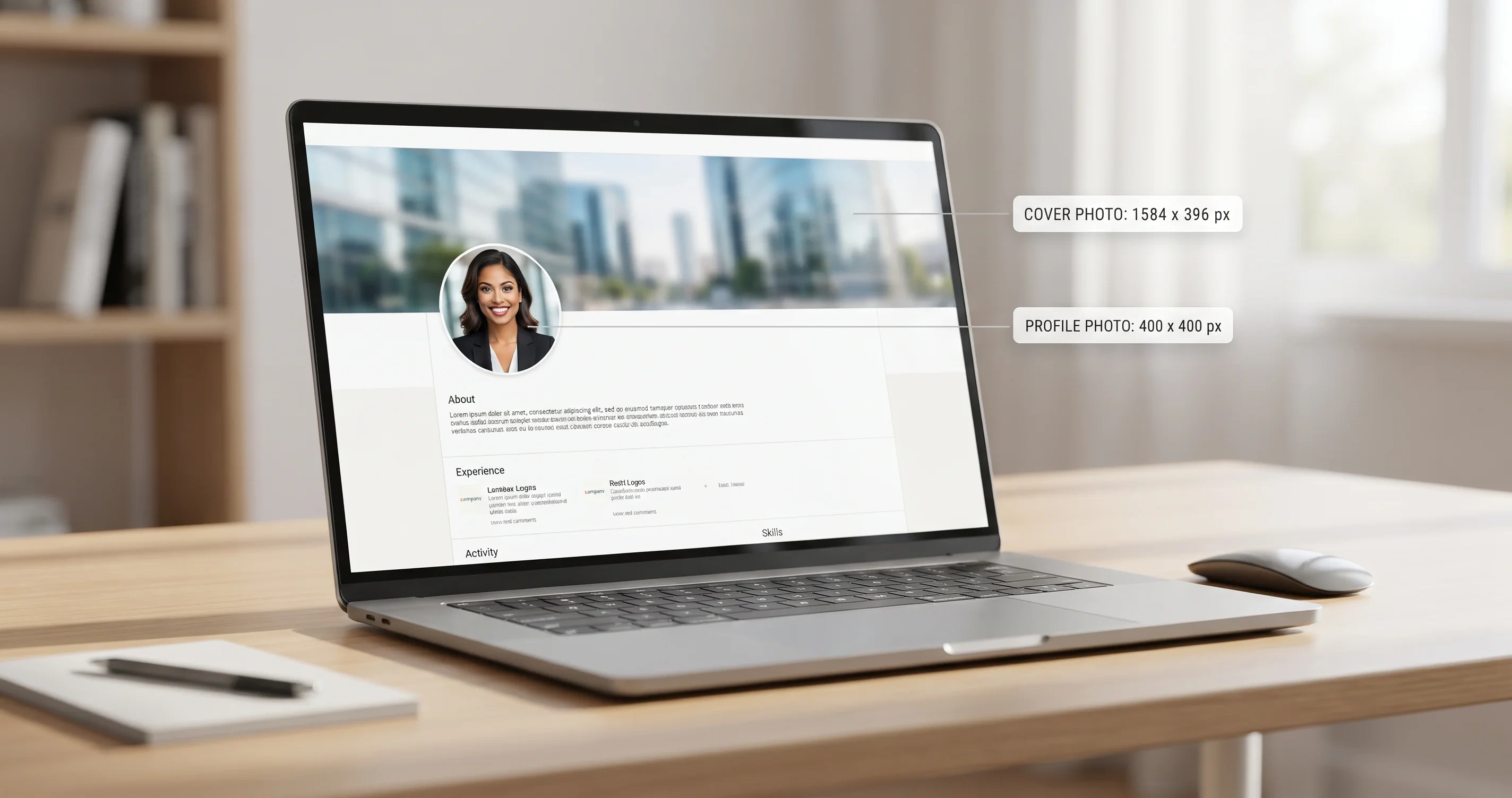 Upload each LinkedIn image at the right size and nothing gets squashed or cropped.
You can resize any photo to these exact sizes with our social media image resizer, right in your browser, with nothing uploaded.
LinkedIn image sizes at a glance
These are the dimensions LinkedIn uses in 2026. Sizes do change occasionally, so if something looks off, double-check LinkedIn's current guidance.
- Profile photo: 400 x 400 px (square, displayed as a circle)
- Profile background / cover banner: 1584 x 396 px
- Shared post image: 1200 x 627 px (landscape) or 1200 x 1200 px (square)
- Company page logo: 300 x 300 px
- Company page cover image: 1128 x 191 px
Use JPG or PNG for all of them, and keep files reasonably small (well under 8 MB).
Profile photo (400 x 400)
Your profile photo is the image people see everywhere on LinkedIn, shrunk into a small circle. Upload it as a square at 400 x 400 px or larger, or LinkedIn will crop it for you, usually not where you want. Keep your face filling most of the frame, use a plain or softly blurred background, and make sure it is well lit. A head-and-shoulders shot reads far better at circle size than a full-body photo where your face becomes a dot.
Background / cover banner (1584 x 396)
The banner behind your profile is wide and short, so anything you put near the left and right edges risks being cut off on different screens. Keep important text and logos in the middle third. At 1584 x 396 px it stays sharp on desktop; upload something smaller and LinkedIn stretches it into a blurry mess.
Post and shared images (1200 x 627 or 1200 x 1200)
For a normal image post, a square 1200 x 1200 px image takes up the most space in the feed and tends to get noticed. When you share a link, LinkedIn pulls a 1200 x 627 px landscape preview. Either way, start from a high-resolution image and resize down, never up, so it stays crisp.
Company page images (logo 300 x 300, cover 1128 x 191)
If you run a LinkedIn company page, the logo should be a square 300 x 300 px, and the cover image across the top is 1128 x 191 px. As with the personal banner, keep any text in the centre so nothing is cropped on smaller screens.
How to resize a photo to these sizes for free
You do not need Photoshop or a subscription. Open our social media image resizer or the image resizer, load your photo, and set the width and height to the LinkedIn size you need. Everything happens in your browser, so the photo never gets uploaded to a server.
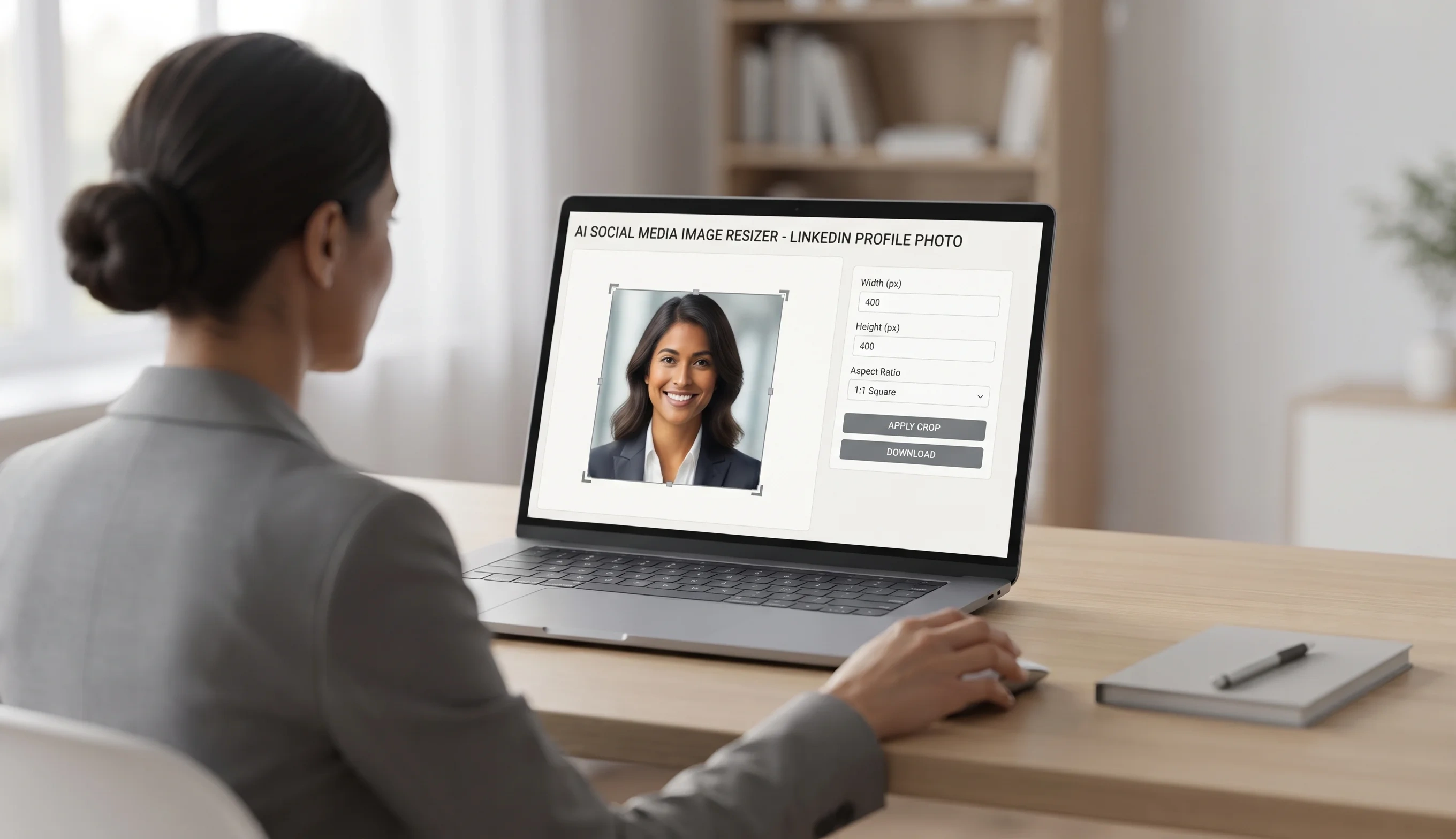 Set the exact LinkedIn width and height in the browser, with nothing uploaded.
A few tips to keep it sharp
- Resize down, not up. Enlarging a small photo to fit a big banner makes it blurry. Start from the largest version you have.
- Mind the crop. For the profile photo, leave a little space around your head so the circular crop does not cut your hair or chin.
- Keep text centred on banners and covers, since the edges get trimmed on different devices.
- Match the aspect ratio first. If your photo is a different shape, crop it to the right proportions before resizing, so nothing gets stretched.
The short version
Profile photo 400 x 400, banner 1584 x 396, post image 1200 x 1200, company logo 300 x 300, company cover 1128 x 191. Resize to those exact numbers before you upload and your LinkedIn presence looks sharp and deliberate instead of squashed and accidental.