How to Combine Multiple JPG Images Into One PDF (Free)
Combine JPG to PDF — free & instant
Drop in your JPG or PNG images, drag them into order, and download a single PDF — right in your browser. Free, no upload, no sign-up.
You have five photos of a document, a stack of scanned pages, or a set of receipts — and the form only accepts one file: a PDF. Uploading five separate JPGs is not an option, so you need them merged into a single PDF, in the right order. This guide shows you how to combine multiple JPG (or PNG) images into one PDF for free, in the order you choose, without uploading your documents to a stranger's server — plus the built-in ways to do it on Windows and a Mac when you would rather not use a website at all.
We will cover the fastest route, how to get the pages in the right order, mixing JPG and PNG in one document, doing it on any device, and keeping the finished PDF small enough to upload.
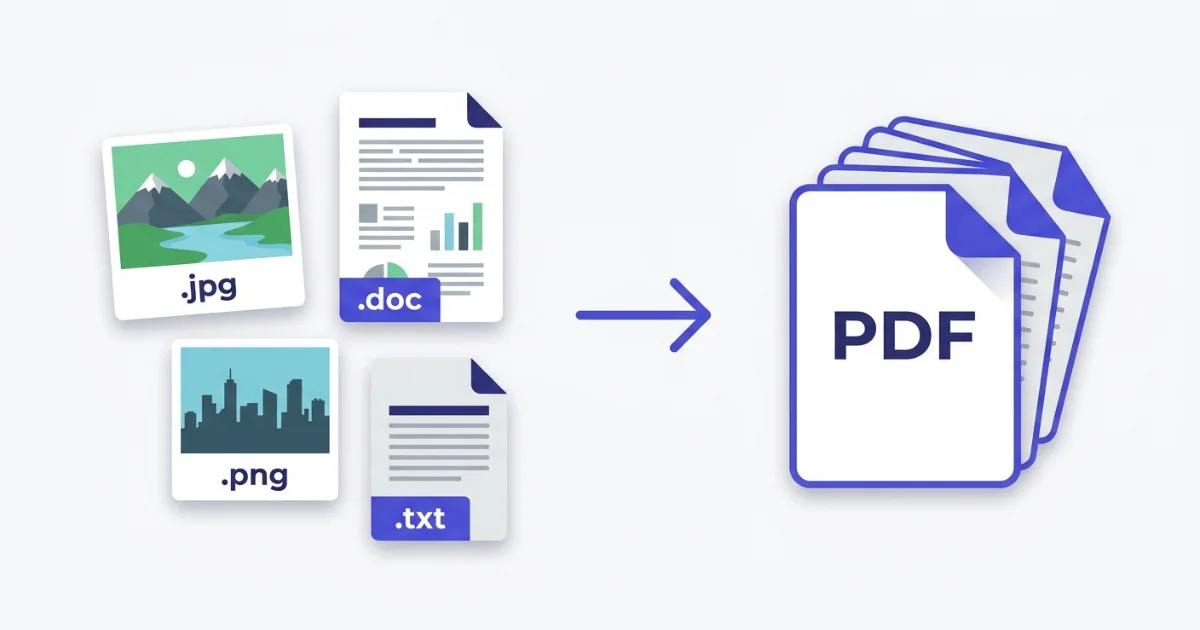 Several images in, one ordered PDF out — ready to upload or share.
The fastest way: combine images into one PDF in your browser
This needs nothing installed and works the same on a phone or a laptop.
- Open the JPG to PDF tool in any browser.
- Drop in all your images at once — or click to select the whole set.
- Drag the thumbnails to put them in the order you want. The first image becomes page one.
- Download the single PDF.
The whole thing runs inside your browser, on your own device, so none of the images are uploaded. That matters when the pages are a signed contract, an ID, a bank statement or medical paperwork — the usual reasons people need a combined PDF. A browser tool reads the images locally and sends nothing over the network. You can prove it: load the tool, switch your Wi-Fi off, and combine the pages anyway — it still works, because the files never left your device.
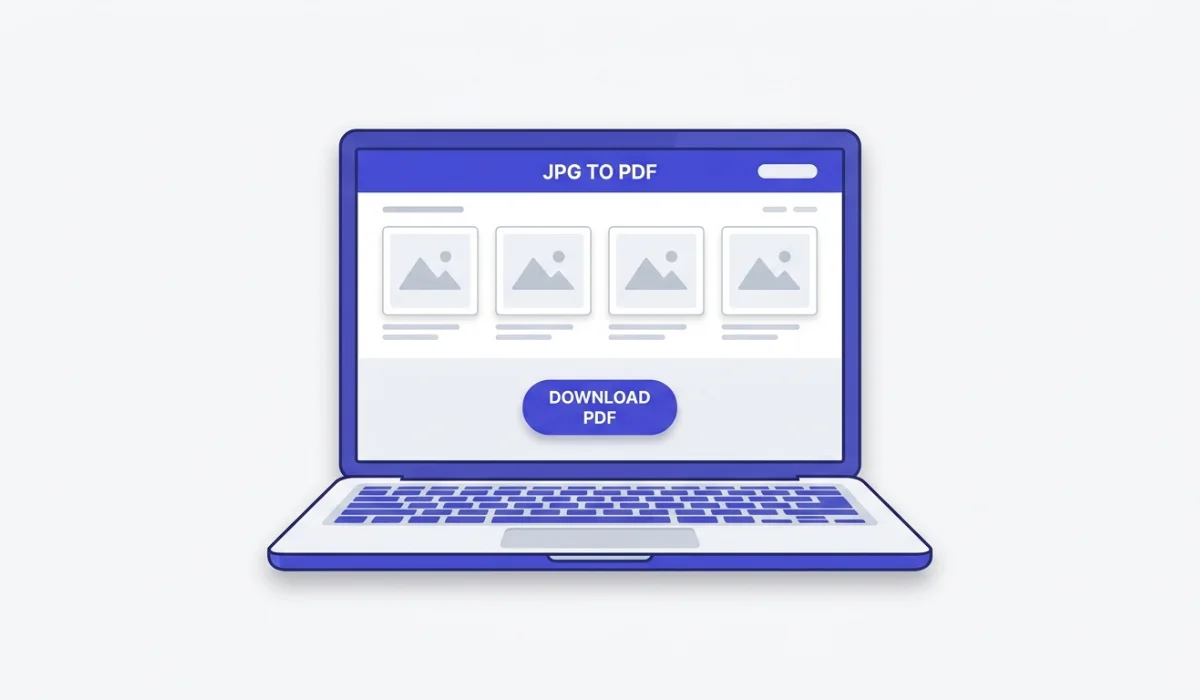 Drop the whole set, reorder the thumbnails, and download one PDF.
Put the pages in the right order
For a document, the order is the whole point — page two after page one, not shuffled. The rule in every good combiner is simple: the order of the thumbnails is the order of the PDF, and the first image is page one.
Drag the thumbnails into place before you download. If you are combining a lot of pages and want a shortcut, rename the files first with a number in front — 01, 02, 03 — so they load in order automatically. That is the fastest way to assemble a twenty-page scan without dragging each one.
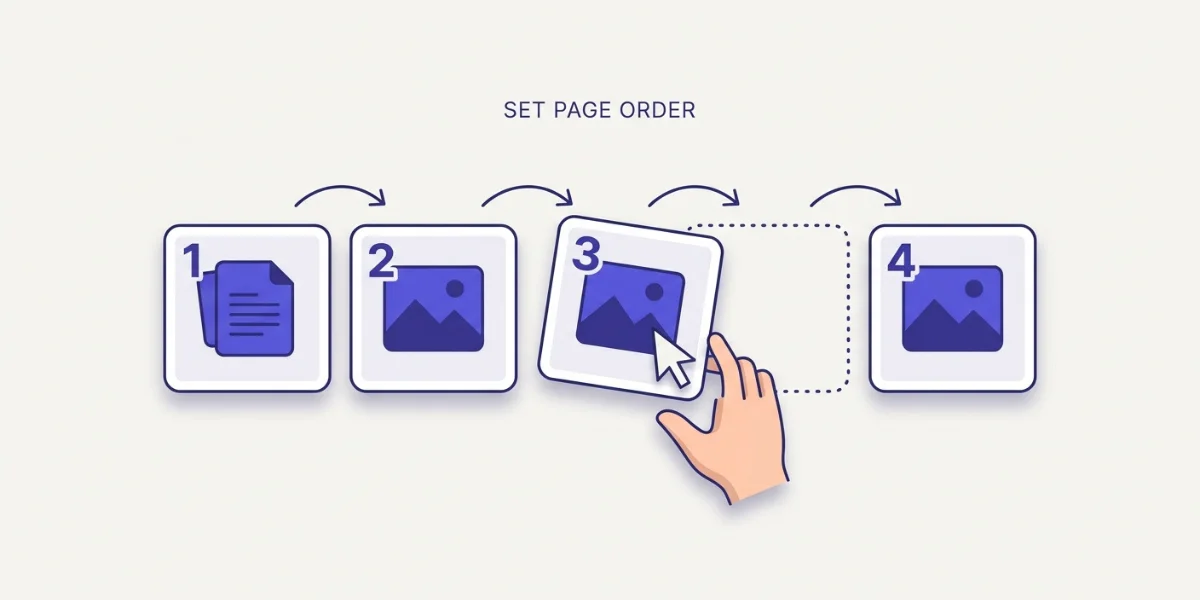 The thumbnail order is the page order — drag to arrange, first image is page one.
Combine JPG, PNG, and other images together
You are not limited to one format. A good combiner takes a mix — JPG photos, PNG scans, screenshots — and puts them all into one PDF. Drop them in together and arrange the order as usual.
Two things to know. If some of your images are HEIC from an iPhone, convert them to JPG first with the HEIC to JPG tool, since many tools and forms do not read HEIC. And if everything you have is PNG, you can go straight through the PNG to PDF tool instead — there is a full walkthrough in the guide to converting PNG to PDF. For any other image type, the image to PDF tool handles the lot.
How to combine images into a PDF on any device
Browser, any device. The JPG to PDF tool is the one I use — it takes a whole set, lets you reorder the pages, outputs one PDF, and never uploads anything. It works the same in Chrome, Edge, Safari and Firefox, on a computer or a phone.
Windows (built in). You do not strictly need a tool. Select all the images in File Explorer, right-click, and choose Print. In the print dialog pick Microsoft Print to PDF as the printer, choose how many images go per page, and click Print, then pick where to save. It is quick, but the reordering is clumsy (it follows the file order) and you get little control over page size — which is why the browser tool is easier for anything you need arranged neatly.
Mac (built in). Open all the images together in Preview, drag the thumbnails in the sidebar into the order you want, then choose File then Print, click the PDF dropdown in the bottom-left, and pick Save as PDF. Preview's reordering is genuinely good, so this is a solid no-tool option on a Mac.
iPhone and Android. Phones have no clean built-in way to merge several photos into one ordered PDF. Open the browser tool on the phone instead. On an iPhone, convert the HEIC photos to JPG first so they combine cleanly.
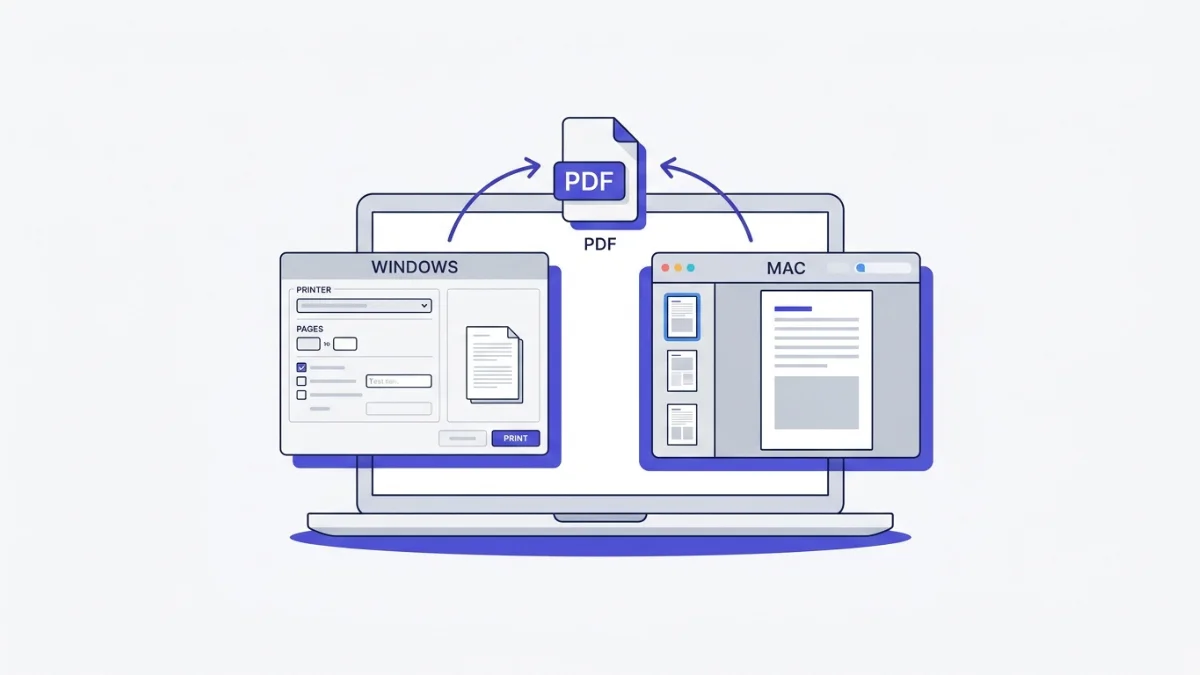 Windows Print to PDF and Mac Preview both merge images with no extra tool.
Page size, orientation, and fitting
For a document, you usually want each image on its own page, portrait, at A4 or Letter size, with the image scaled to fit the page. That produces a clean, printable document rather than photos floating at odd sizes. For a set of photos where the exact page shape does not matter, fitting the page to each image keeps them full-bleed with no borders. A good combiner lets you pick; if yours does not, portrait A4 with fit-to-page is the safe default for anything document-shaped.
What people combine images into a PDF for
A few common jobs, so you can see where this fits:
Turning a phone-photographed or scanned multi-page document — a contract, a lease, a set of notes — into one file. Assembling an application that demands a single PDF: ID plus supporting documents, or a form plus its attachments. Bundling receipts or invoices into one expense report. And putting a handful of reference images into a single document to email or print. In every case the goal is the same: many images, one ordered, shareable file.
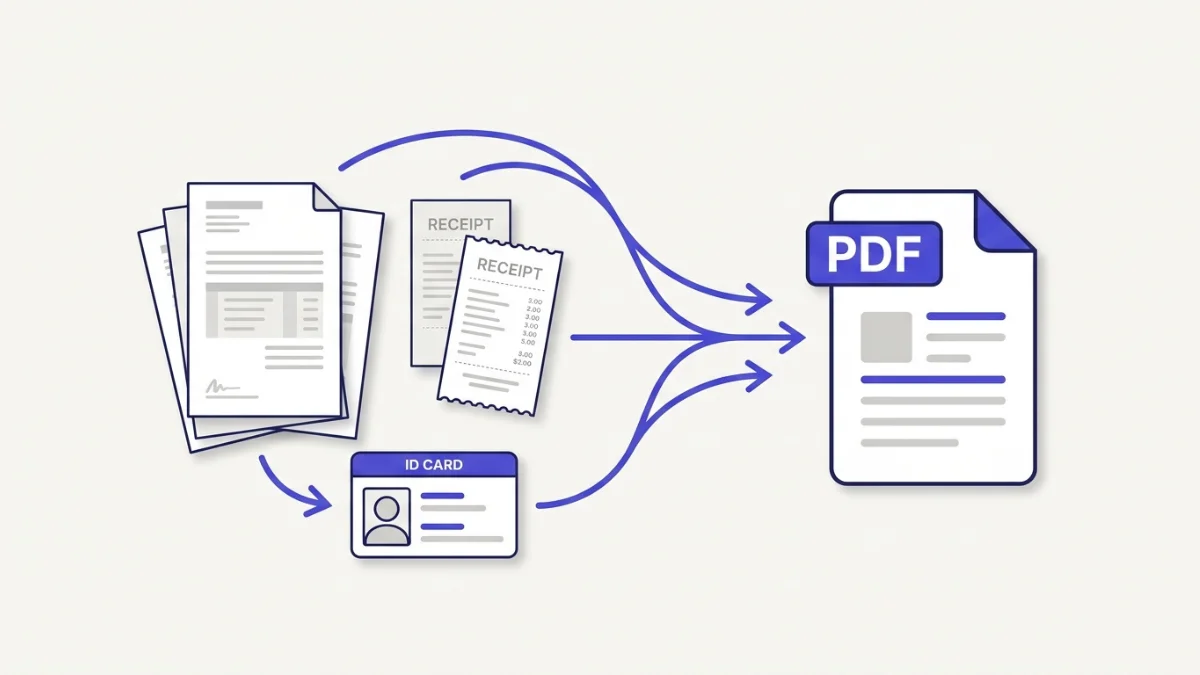 Scans, applications, receipts — many images become one file to upload or print.
Keeping the PDF small enough to upload
Combining several full-resolution phone photos can produce a large PDF, and some upload forms cap the file — often at 2MB or 5MB. If your combined PDF is too big, shrink the images before you merge them: run them through the compress tool to cut the file size, or resize them down to the size they will actually be viewed at, then combine. Doing it in that order — compress or resize first, combine second — keeps the final PDF well under the limit without a visible drop in quality.
Common problems and quick fixes
The pages came out in the wrong order. Reorder the thumbnails before downloading, or rename the files with 01, 02, 03 in front so they load in sequence.
The PDF is too large to upload. Compress or resize the images first, then combine. A page-sized scan rarely needs to be a 6MB photo.
Each image became its own separate file instead of one PDF. You used a tool that converts rather than combines. Use one that merges the whole set into a single PDF — reordering the thumbnails into one document, not exporting each on its own.
A HEIC photo would not combine. Convert iPhone HEIC images to JPG first, then add them to the set.
The images look soft in the PDF. They were compressed too hard before combining. Keep a sensible resolution — enough that text stays readable — rather than crushing every page to the smallest possible size.
Keeping your documents private
The pages people combine into a PDF are often the confidential kind: contracts, IDs, bank and medical documents, signed forms. Most online combiners upload every image to their servers to build the PDF, which leaves a copy of your document on a machine you do not control. A browser-based combiner does the whole job on your own device and uploads nothing — no server copy, no account tied to your paperwork. For anything you would not hand to a stranger, that is the difference that matters, and it costs you nothing in speed.
Last word
Combining images into one PDF comes down to three things: gather the pages, put them in the right order, and export a single file. A browser tool does all three in one pass and keeps the documents on your device; on a Mac, Preview does it well for free; on Windows, Print to PDF works in a pinch. Compress or resize the images first if the finished PDF has to stay under an upload limit.
When you have a set of images to turn into one PDF right now, open the JPG to PDF tool, drop them in, drag them into order, and download your document in a couple of clicks. It is free, it works on any device, and your pages never leave the browser. Converting a whole folder of images to other formats too? Batch convert them and download everything as one ZIP.