How to Remove the Background From a Photo (Free, No Upload)
Remove Image Background — free & instant
Cut the background out of any photo with on-device AI, then download it transparent or on clean white. Free to try, no upload, no sign-up.
You have a great photo of a person, a pet, or a product — but the background behind them is a mess, and you need them on clean white, on a transparent backdrop, or dropped into a different scene. Removing a background used to mean an hour with the pen tool in Photoshop, or paying someone and waiting a day. Now an AI does the cut-out in a couple of seconds. This guide shows you how to remove the background from any photo for free, right in your browser, without uploading your image anywhere.
We will cover the fastest way, when to use a transparent background versus plain white, how to clean up tricky edges like hair, and what to do with the cut-out once you have it.
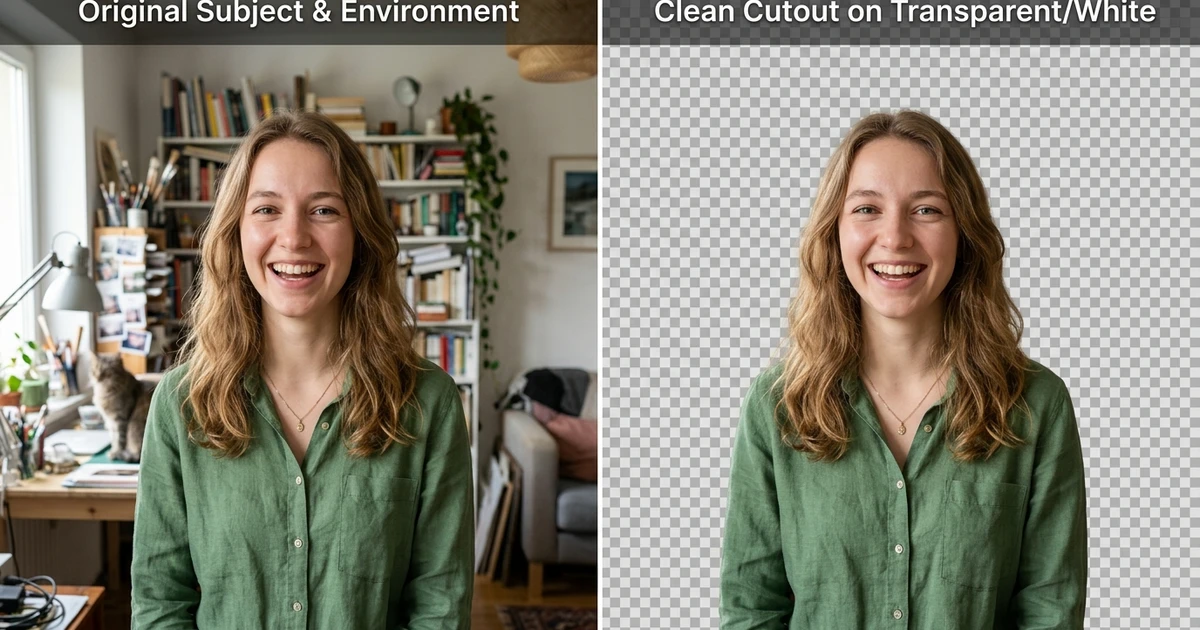 Remove the background from any photo and keep just the subject, on transparent or white.
The fastest way: remove a background in your browser
This needs nothing installed and keeps your photo on your own device.
- Open the background remover in any browser.
- Drop your photo in.
- An AI model separates the subject from the background in a couple of seconds.
- Choose a transparent or a solid-colour background, and download.
The cut-out runs on your device using an AI model (MODNet) through ONNX Runtime in the browser, so the photo is never uploaded. That matters when it is a personal photo, a client's image or an unreleased product. You can check it: load the tool, turn your Wi-Fi off, and it still removes the background, because the image never left your machine.
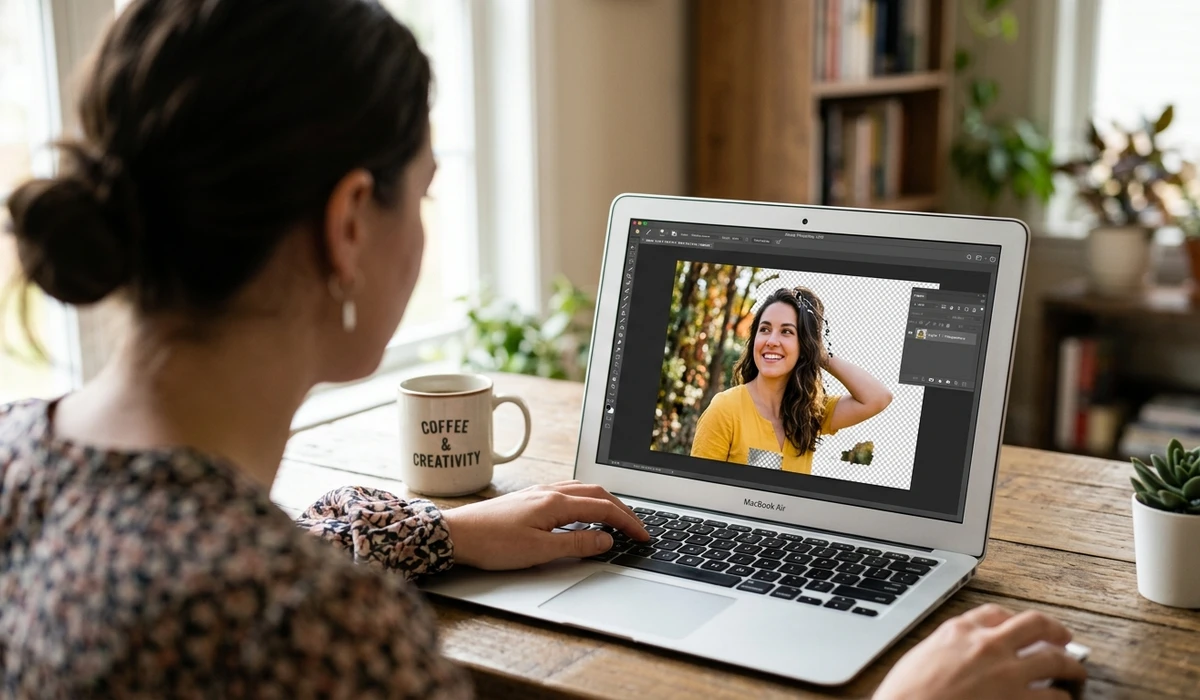 The model separates the subject from the background on your own device.
Transparent, white, or a new background?
What you do with the cut-out depends on where it is going.
A transparent background — a PNG with no backdrop — is what you want when the subject will sit on top of something else: a coloured banner, a slide, a design, or your own site. Keep a transparent PNG and you can drop the subject onto any background later without cutting it out again.
A plain white (or solid colour) background is what most marketplaces, profile photos and ID uploads expect. You get a finished image ready to use.
A new scene is the fun one: remove the original background, then place the cut-out on a different photo — a product in a lifestyle setting, a person against a cleaner backdrop. Export the subject as a transparent PNG first, then combine it with the new background in any editor.
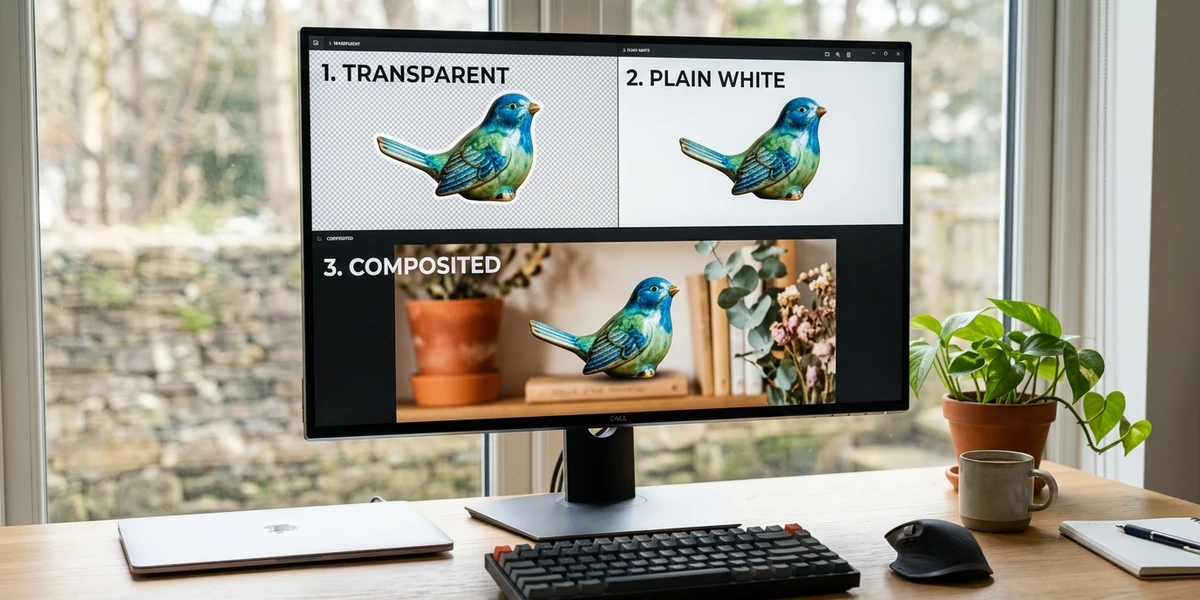 Transparent PNG to place anywhere, white for listings and profiles, or a brand-new scene.
Getting a clean edge
The AI handles most photos well, but a few subjects are worth checking before you use the result. Hair, fur and fuzzy edges — a portrait, a pet, a plush toy — are where automatic cut-outs can leave a faint halo or a slightly hard line. Glass, jewellery and other see-through or reflective objects are the other tricky case, because the model has to decide what is subject and what is background showing through.
For these, a manual mask brush lets you paint back a bit that was cut off or erase a bit that was left behind, so you fix the few pixels the AI missed instead of redoing the whole thing. The brush and unlimited AI cut-outs are part of Pro; the free tool handles a few a day, which is enough to try it on your trickiest photo first.
What to do with the cut-out
Once the background is gone, a few common next steps:
- Make a profile or passport photo — a clean headshot on the right background. The passport photo maker sets the dimensions and background for common formats.
- Make a sticker — a cut-out with a contour outline. The sticker maker adds the border and export presets.
- List a product — a white background is what Amazon, Etsy and Shopify want; there is a full walkthrough in the guide to removing product photo backgrounds.
- Size it for where it is going — resize the finished image with the image resizer, or add your mark with the watermark tool.
How to remove a background on any device
Browser, any device. The background remover is the one I use — on-device AI, transparent or white output, and nothing uploaded. It works the same in Chrome, Edge, Safari and Firefox, on a computer or a phone.
Phone. Open the browser tool on the phone; it runs the same AI cut-out on the smaller screen. (Newer iPhones can lift a subject out in Photos, but you cannot control the background or export a clean transparent PNG the same way.)
Photoshop or other editors. They give you full manual control if you are already working there, but they are far more steps than dropping a photo into an AI cut-out for a quick result.
Common problems and quick fixes
A faint halo around the edge. Common on hair or fur. Use the mask brush to tidy the outline, or start from a photo with more even lighting where the subject meets the background.
Part of the subject got cut off. The model mistook a light or reflective part for background. Paint it back with the mask brush rather than redoing the whole cut-out.
The white is not pure white. Choose the pure-white background option, or export transparent and place it on a white canvas — useful for marketplaces that require an exact white.
Glass or jewellery looks odd. See-through objects are the hardest case; they usually need a little manual cleanup, and a plain backdrop in the original photo gives the AI a cleaner start.
Keeping your photo private
The photos people cut out are often personal or confidential — a portrait, a client's image, an unreleased product. Most online background removers upload every photo to their servers, leaving a copy behind. A browser-based remover does the cut-out on your own device and uploads nothing, so your image stays yours. For anything you are not ready to share, that is the difference that matters, and it costs you nothing in speed.
Last word
Removing a background turns a cluttered photo into a clean subject you can put anywhere: keep a transparent PNG as your master, export white for listings and profiles, and tidy any hair or glass edges with the mask brush. Then size it for wherever it is going.
When you have a photo to cut out right now, open the background remover, drop it in, and download a clean result in a couple of seconds. It is free to try, it runs on your own device, and your photo never leaves the browser.