How to Remove a Product Photo Background (Free)
Remove Image Background — free & instant
Cut the background out of a product photo with on-device AI, then download it on clean white or transparent. Free to try, no upload, no sign-up.
You photographed your product on a kitchen table, and now the marketplace wants it on a clean white background with nothing else in the frame. Amazon is strict about it, Etsy and Shopify listings look amateur without it, and shooting in a proper lightbox is more effort than most small sellers can spare for every item. The fix is to remove the background from the photo you already have and drop the product onto pure white or a transparent backdrop. This guide shows you how to do it free, in your browser, without uploading your product shots anywhere, and how to get an edge clean enough to pass a marketplace's checks.
Removing a background used to mean an hour in Photoshop with the pen tool, or paying someone five dollars an image and waiting a day. An on-device AI model does the cut-out in a couple of seconds. The rest of this article covers the fastest way to do it, when to use white versus transparent, how to clean up tricky edges like hair and reflections, how to do a whole catalogue at once, and the exact background rules for the big marketplaces.
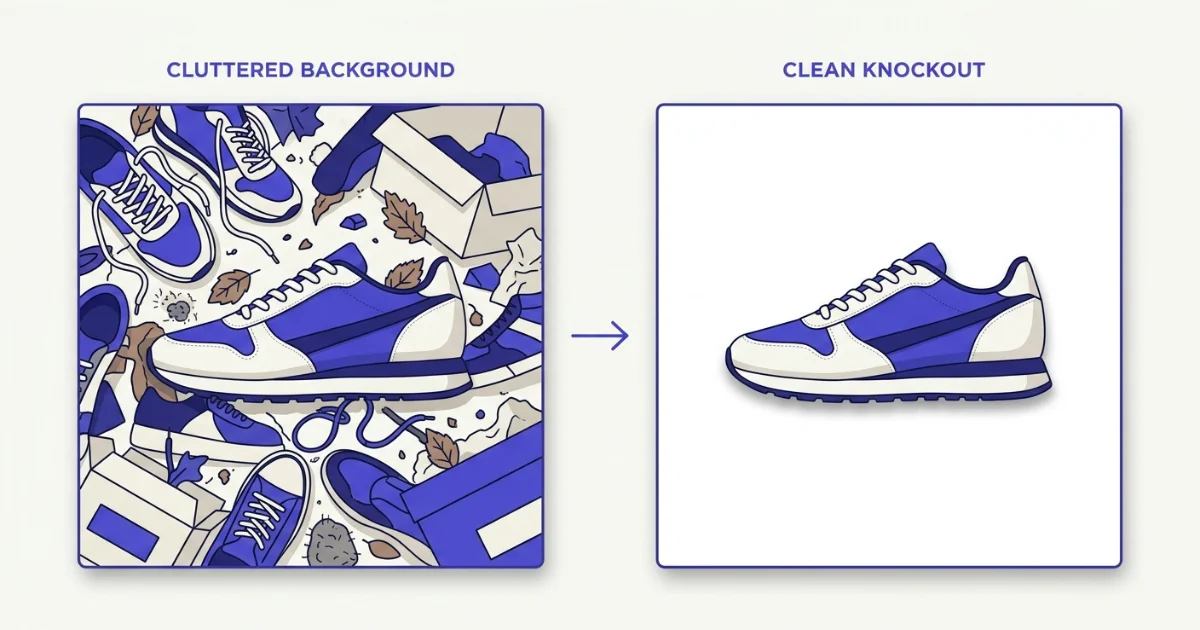 The same phone photo before and after: a cluttered background replaced with clean white.
The fastest way: cut out the product in your browser
This needs nothing installed and keeps your photos on your own device.
- Open the background remover in any browser.
- Drop your product photo in.
- The AI model separates the product from the background in a couple of seconds.
- Choose a clean white background or a transparent one, then download.
The cut-out runs on your device using an AI model (MODNet) through ONNX Runtime in the browser, so the photo is never uploaded. For a product that has not launched yet, or a design you would rather competitors did not see early, that privacy is the difference between a tool you can trust with a catalogue and one you cannot. You can check it the usual way: load the tool, turn off your Wi-Fi, and it still removes the background, because the image never left your machine.
 The model separates the product from its background on your own device.
Why the background matters for product photos
It is not only about looking tidy. A clean, consistent background does real work on a listing.
Marketplaces enforce it. Amazon requires the main image of most categories to sit on a pure white background — specifically RGB 255, 255, 255 — with the product filling most of the frame and no props, text or logos. Get it wrong and the listing can be suppressed. Etsy, eBay and Shopify are less strict, but a row of products each shot on a different messy background looks careless next to a competitor whose catalogue is uniform.
It also helps buyers. A plain backdrop puts all the attention on the product, and a consistent look across every image makes a shop feel professional, which is quietly one of the things that moves a browser to a buyer.
White background or transparent?
The two outputs do different jobs, and it is worth choosing on purpose.
A white background is what most marketplaces want for the main listing image, and it is the safe default for Amazon. You get a finished JPG ready to upload.
A transparent background — a PNG with no backdrop at all — is what you want when the product will sit on top of something else: a coloured banner, an ad, a lifestyle scene, or your own site's design. Keep a transparent PNG master and you can drop the product onto any background later without cutting it out again.
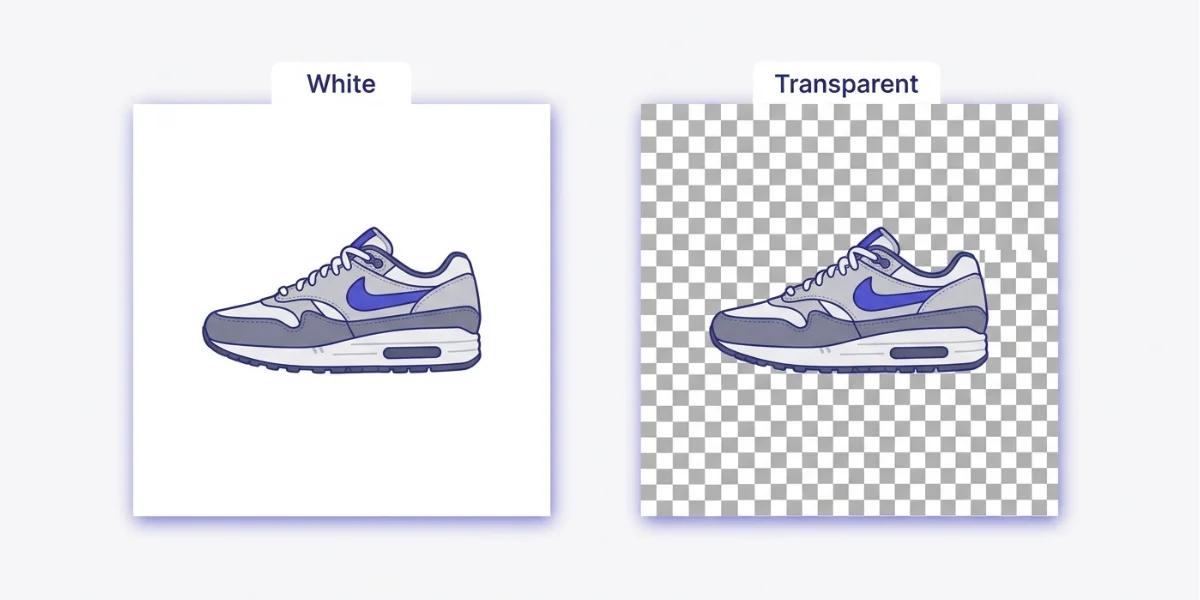 White for a marketplace listing; transparent PNG for putting the product anywhere.
The practical approach for a shop is to keep a transparent PNG of each product as the master, then export a white-background JPG from it for the marketplace image. That way one clean cut-out serves every use.
Getting the edges clean
The AI does the hard part, but a few product types have edges worth checking before you upload.
Hair, fur and fuzzy textures — a wig, a plush toy, a knitted item — are where automatic cut-outs struggle, leaving a faint halo or a slightly hard edge. Reflective and transparent products, like glassware, jewellery or a bottle, are the other tricky case, because the model has to decide what is product and what is background showing through.
For these, the manual mask brush lets you paint back a bit that was cut off or erase a bit that was left behind, so you fix the few pixels the AI missed instead of redoing the whole thing. The brush and unlimited AI removals are part of Pro; the free tool handles a few cut-outs a day, which is enough to try it on your trickiest photo before deciding.
 The mask brush fixes the few edge pixels the AI misses on hair or glass.
Doing a whole catalogue at once
One product is quick. A shop with fifty listings is where this adds up. Rather than cutting out each photo by hand, remove the background from the whole set and keep them consistent — same white, same framing. Batch background removal and larger batches are a Pro feature, since each cut-out has a real compute cost the model runs on your device.
If you are also converting formats across a folder — say a set of HEIC photos from a phone shoot — the batch converter handles that part, and you can read the full walkthrough in the batch conversion guide.
After the cut-out: size it for the marketplace
A clean background is step one. Most marketplaces also want a specific size, and getting it right stops the platform from cropping or softening your image.
Resize the finished photo to the marketplace's recommended dimensions with the image resizer — Amazon wants at least 1000 pixels on the longest side so zoom works, and 2000 or more is better. If the same product is going onto social posts as well, the sizes differ by platform, and the guide to resizing for social media has the current numbers. Selling handmade or branded goods and want your mark on the lifestyle shots? Add it with the watermark tool. And if a marketplace caps the file size, run the image through the compress tool to fit without changing the dimensions.
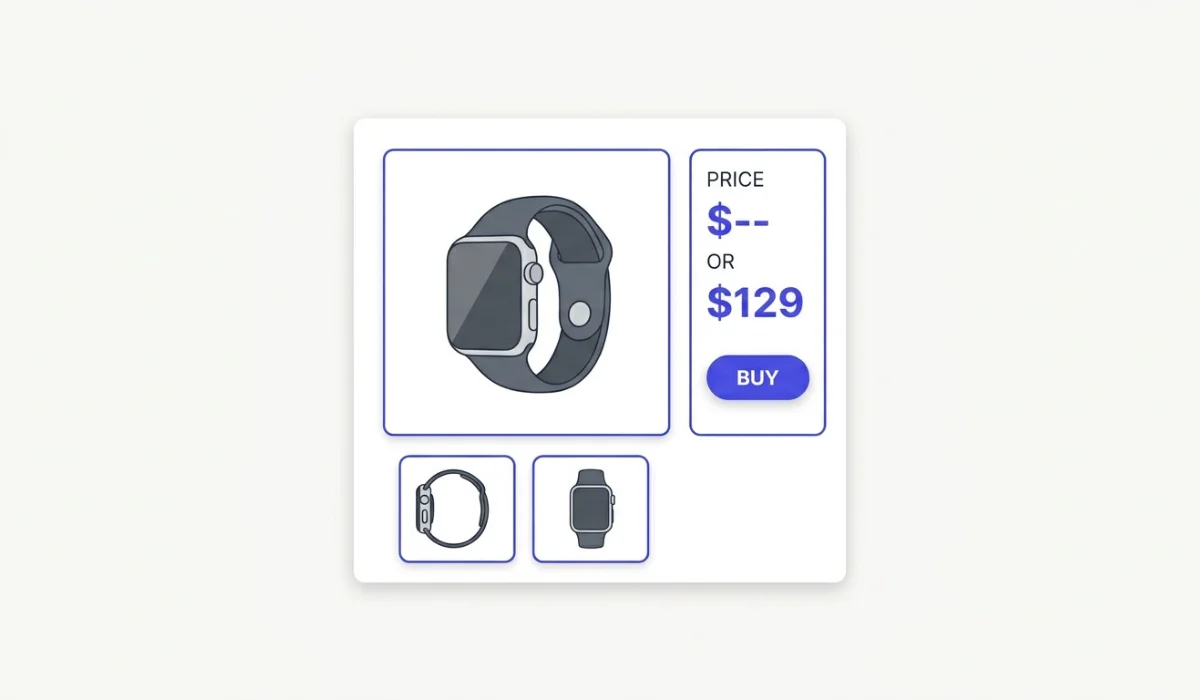 Cut out, dropped on white, and sized for the listing.
Marketplace background rules at a glance
- Amazon: main image on a pure white background (RGB 255, 255, 255), product filling about 85 percent of the frame, no text, logos or props, JPEG, at least 1000 pixels on the longest side.
- eBay: a plain white or light background is recommended for the main image, minimum 500 pixels but 1600 is better.
- Etsy: no strict white rule, but a clean, consistent background across a shop is expected; go for 2000 pixels or more.
- Shopify: flexible, but a consistent white or transparent look across the catalogue is the norm; around 2048 pixels square works well.
Whichever you sell on, a white background almost never hurts, so it is the safe default for the main image.
Common problems and quick fixes
The edge has a faint halo. Common on hair or fuzzy products. Use the mask brush to tidy the outline, or re-run the photo with more even lighting where the product meets the background.
Part of the product got cut off. The model mistook a light or reflective part for the background. Paint it back with the mask brush rather than redoing the whole cut-out.
The white is not pure white. Some tools leave an off-white or a soft grey. For Amazon you need a true 255, 255, 255; choose the pure-white background option, or export transparent and place it on a pure-white canvas.
Glass or jewellery looks odd. Reflective and see-through products are the hardest case, because the background shows through them. These usually need a little manual cleanup, and sometimes a re-shoot against a plain backdrop gives the AI a cleaner start.
Keeping product shots private
Product photography is often confidential: an unreleased item, a new design, a range under embargo. Most online background removers upload every image to their servers to run the cut-out, which puts a copy of your unlaunched product on a machine you do not control.
A browser-based remover does the cut-out on your own device and uploads nothing. There is no server copy and no account attached to your catalogue. For products you are not ready to show the world, that is worth more than a slightly faster server, and here it costs you nothing.
Last word
Removing the background is what turns a phone photo into a listing image: cut the product out, drop it on pure white for the marketplace or keep a transparent PNG master for everything else, and tidy any hair or glass edges with the mask brush. Then size it for wherever it is going before you upload.
When you have a product photo to clean up right now, open the background remover, drop it in, and download a clean cut-out in a couple of seconds. It is free to try, it runs on your own device, and your product shots never leave the browser.