Social Media Image Sizes in 2026: Every Platform's Dimensions
Social Media Image Resizer — free & instant
Crop and resize your photo to the exact size for any social platform in your browser — free, private, no uploads.
Upload a photo at the wrong size and the platform crops your head off, stretches your logo, or turns a crisp banner into a blurry mess. Every social network resizes images to its own fixed dimensions, so the fix is simple: start at the size the platform actually wants. This is an up-to-date reference for the image sizes that matter in 2026, plus a free way to resize any photo to fit — with nothing uploaded to a server.
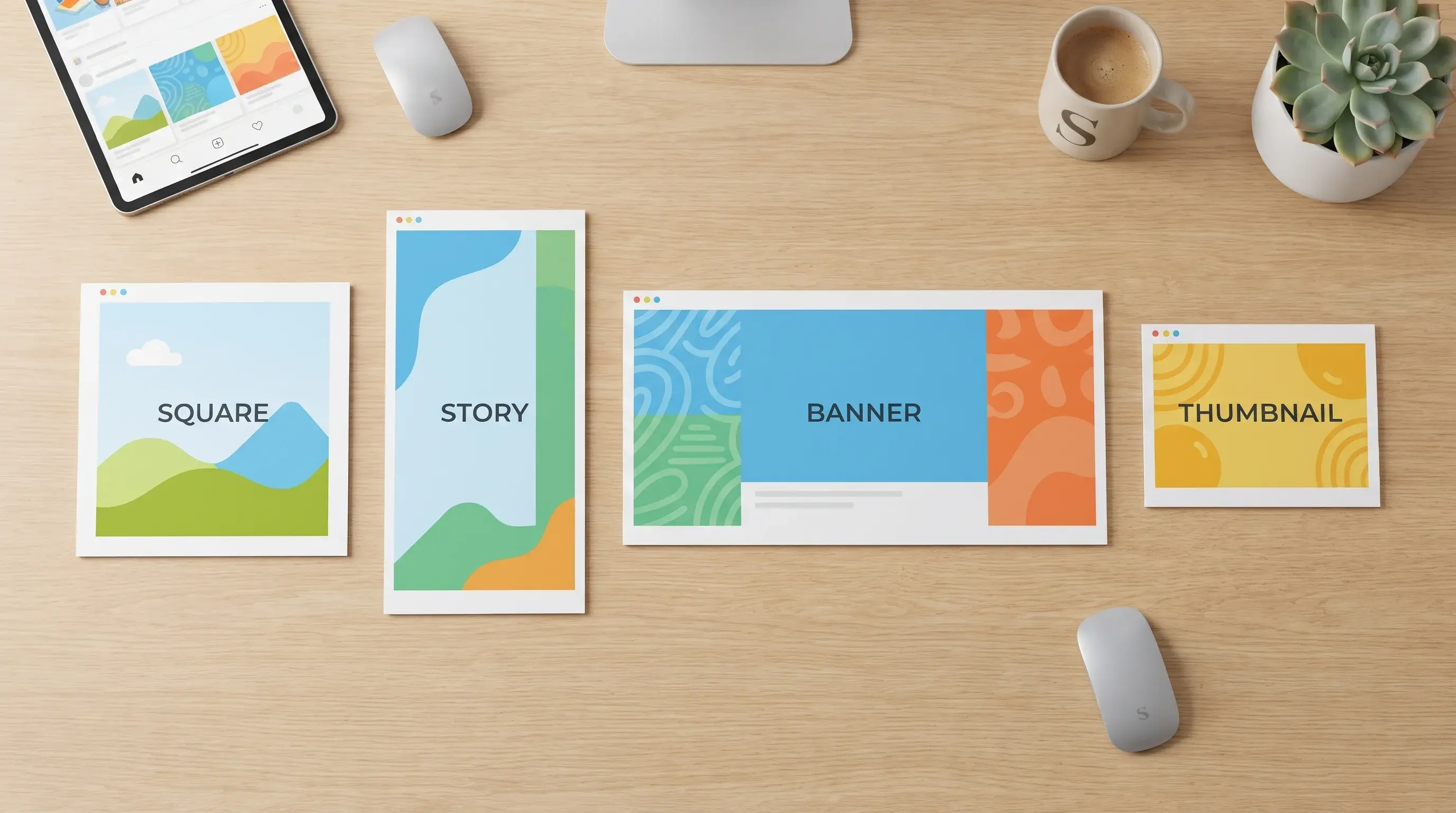 Each platform wants a specific size — match it and nothing gets cropped or blurred.
You can resize any image to the exact numbers below with our social media image resizer or the image resizer, right in your browser.
Why getting the size right matters
Every platform crops and compresses uploads to fit its own layout. Hand it the wrong shape and it decides what to cut — usually the worst possible part, like the top of someone's head or the end of your tagline. Hand it something too small and it stretches the pixels until the image looks soft. Give it the exact dimensions, though, and it leaves your image alone: nothing cropped, nothing blurred, nothing stretched. A few seconds of resizing is the difference between a post that looks professional and one that looks like an accident. The two numbers that control everything are the dimensions (width × height in pixels) and the aspect ratio (their proportion) — get both right for the platform and you are done.
- Square post: 1080 × 1080 px
- Portrait post: 1080 × 1350 px (takes the most feed space)
- Landscape post: 1080 × 566 px
- Story / Reel: 1080 × 1920 px (9:16)
- Profile photo: 320 × 320 px
X (Twitter)
- In-stream post image: 1600 × 900 px (16:9)
- Header / banner: 1500 × 500 px
- Profile photo: 400 × 400 px
- Shared post / link image: 1200 × 630 px
- Cover photo: 851 × 315 px
- Story: 1080 × 1920 px
- Profile photo: 170 × 170 px (displayed)
- Profile photo: 400 × 400 px
- Background / banner: 1584 × 396 px
- Post image: 1200 × 1200 px (square) or 1200 × 627 px (landscape)
- Company logo: 300 × 300 px · Company cover: 1128 × 191 px
There's a full breakdown in our LinkedIn photo size guide.
YouTube
- Thumbnail: 1280 × 720 px (16:9)
- Channel banner: 2560 × 1440 px (keep text/logo in the center 1546 × 423 "safe area")
- Channel profile: 800 × 800 px
- Standard Pin: 1000 × 1500 px (2:3)
- Profile photo: 165 × 165 px
TikTok
- Video / cover: 1080 × 1920 px (9:16)
- Profile photo: 200 × 200 px
Sizes do shift occasionally, so if something looks off, check the platform's current help page. But these are the dimensions in use in 2026.
How to resize a photo to any of these for free
You do not need Photoshop or a subscription. Open our social media image resizer, load your image, and set the width and height to the size you need — or pick a platform preset. Everything runs on your device, so the photo is never uploaded.
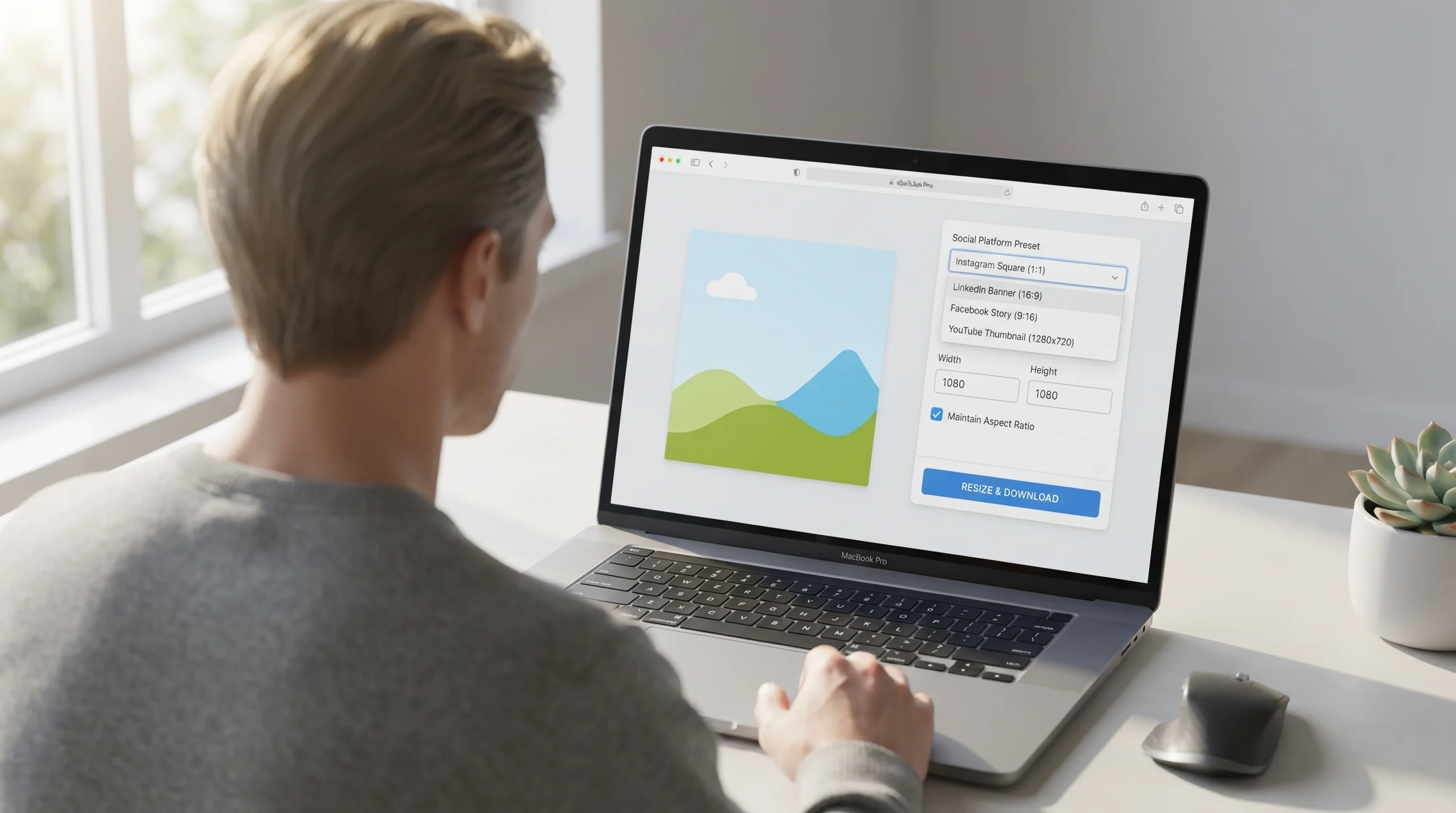 Set the exact width and height in the browser, with nothing uploaded.
Three tips to keep it sharp
- Resize down, not up. Enlarging a small image to fill a big banner makes it blurry. Start from the largest version you have.
- Keep text and logos centered on banners and covers — the edges get cropped differently on phones and desktops.
- Match the shape first. If your photo is the wrong proportions, crop it to the right ratio before resizing so nothing gets stretched.
The short version
Match the platform's size before you upload and your posts look sharp and deliberate instead of cropped and accidental. Bookmark this page, and when you need to hit a number, our resizer does it in seconds without uploading your photo anywhere.